Showing posts with label office. Show all posts
Showing posts with label office. Show all posts
Sunday, September 28, 2014
Microsoft Office WebApps vs Google Docs
A student would like to create a simple document and share it with his classmates.
How can such task be done? Well, easiest and most used way is to create a document on local computer with Microsoft Word and just email it to classmates. This approach has worked since inception of email and Word 97. But lets remember that its 2013 and there must be a better way.
Essentially, there are two major free solutions available in the market: Microsoft Office WebApps and Google Docs. Lets compare them face to face.
We will analyze a work flow of creating and sharing a Word document in with Microsoft and Google solutions.
Lets take a look at Microsoft Web Apps first.
How do we start?
1. We will search for "office web apps" in bing.com
Heres what we get:
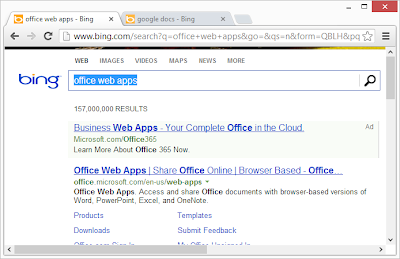
2. Weve got 2 links related to Web Apps. First link is a sponsored "Ad". Lets click there.
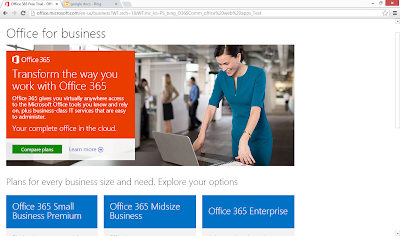
Uhhh, nope, no Web Apps here. This is a page about Office 365, not Office Web Apps. Ok
3. Click "Back" button in your browser to get back to search results
4. Lets click non-sponsored link
http://office.microsoft.com/en-us/web-apps
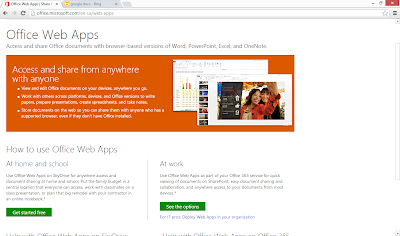
5. Click "Get Started free" Button
It takes you to SkyDrive
https://login.live.com/login.srf?wa=wsignin1.0&rpsnv=11&ct=1362894523&rver=6.2.6289.0&wp=MBI_SSL_SHARED&wreply=https:%2F%2Fskydrive.live.com%2F&lc=1033&id=250206&mkt=en-US&cbcxt=sky
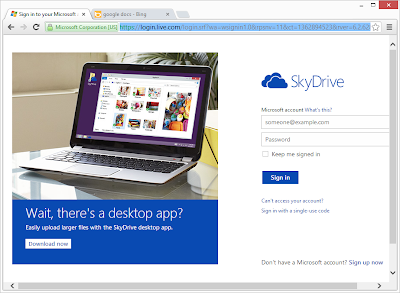
Uhh, why did it take me to SkyDrive? I want to use Office Web Apps?
6. Whatever, lets sign in.
SkyDrive shows me its folders. So, again, I wanted to use Office Web Apps, where are they?
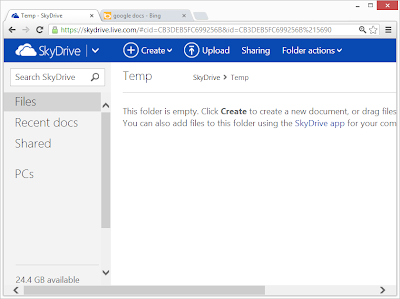
Well, it just so happened, that I actually know how to get to Word WebApp, because Ive done it before, so lets do it.
7. Click Create > Word Document > Create
Word Office WebApp creates it and opens it. Heres how it looks.
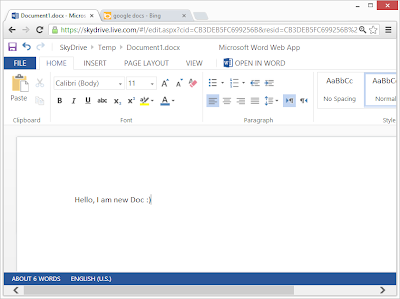
Looks pretty awesome, doesnt it?
Now, how do I share?
File > Share > Share With People > Get a link > Shorten
http://sdrv.ms/12FGcWG
Click Done
Yey, document is shared and you my dear readers can see Word WebApp in action too, just click on link http://sdrv.ms/12FGcWG
Yey, document is shared and you my dear readers can see Word WebApp in action too, just click on link http://sdrv.ms/12FGcWG
Enjoy!!!
Ok, now what about Google Docs?
1. In bing.com type "google docs"
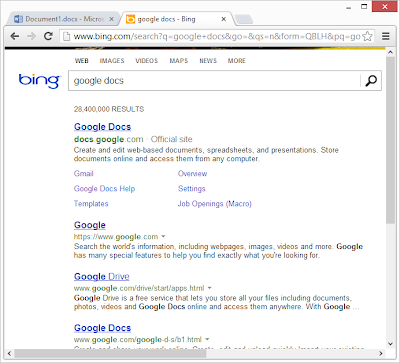
2. Click on 1st link
https://accounts.google.com/ServiceLogin?service=writely&passive=1209600&continue=https://docs.google.com/%23&followup=https://docs.google.com/<mpl=homepage
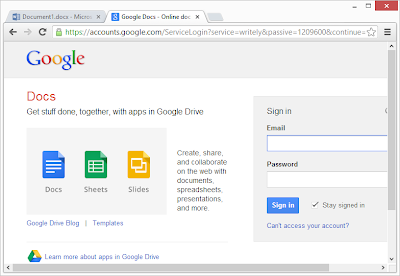 Ok, looks like I am in right place
3. Sign in
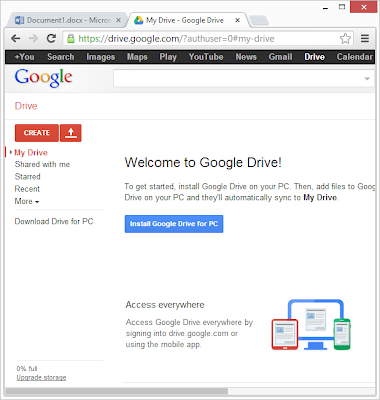
4. There no clear way to get to Google Docs, but there is one red button that attracts attention: Create > Document
Heres how it looks
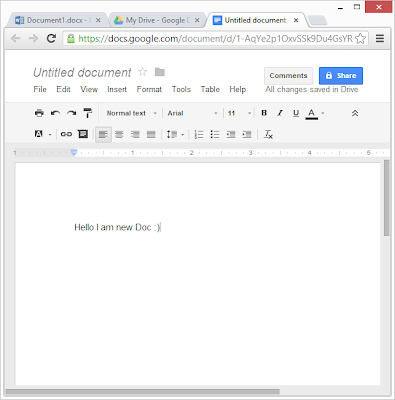
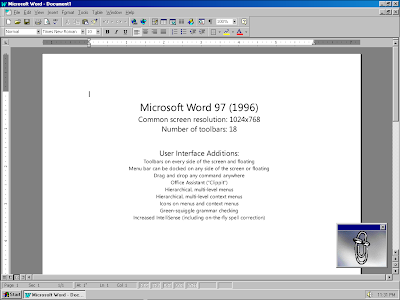
Mheeh, looks like this software was made back in 1990s, not 2013. Just to illustrate my point, heres a screenshot of Word 97 :)
Now, lets look at Google Docs share feature.
Click Share Button
Click Save Button
Click Change Button
Click Anyone with the link
Save
https://docs.google.com/document/d/1-AqYe2p1OxvSSk9Du4GsYRpQnQWAmOA1phw2OiTuV64/edit?usp=sharing
Lets see all our experiences in a table, like real geeks do:
To summarize, Google Docs has great discoverability features and fairly straight-forward document creation workflow. Microsoft Office WebApps needs big improvements in discoverability. Microsoft puts WebApps as 2nd link on search engine results for both Bing.com and Google.com. Really? 2nd link, who would click on it? Cmon.
As far as editing goes, Microsoft Office WebApps just rocks, it looks and feels like Microsoft Word 2013, only free. You content will look good, just the way you want it.
For sharing, both WebApps and Docs have could use some improvements in ease-of-use. I wouldnt enjoy telling my mother over our "tech support" conversations on how to use those "Share" features.
Ok, now what about Google Docs?
1. In bing.com type "google docs"
2. Click on 1st link
https://accounts.google.com/ServiceLogin?service=writely&passive=1209600&continue=https://docs.google.com/%23&followup=https://docs.google.com/<mpl=homepage
3. Sign in
4. There no clear way to get to Google Docs, but there is one red button that attracts attention: Create > Document
Heres how it looks
Mheeh, looks like this software was made back in 1990s, not 2013. Just to illustrate my point, heres a screenshot of Word 97 :)
Now, lets look at Google Docs share feature.
Click Share Button
Click Save Button
Click Change Button
Click Anyone with the link
Save
https://docs.google.com/document/d/1-AqYe2p1OxvSSk9Du4GsYRpQnQWAmOA1phw2OiTuV64/edit?usp=sharing
Lets see all our experiences in a table, like real geeks do:
Microsoft Office WebApps | Google Docs | Winner | |
Price | Free | Free | Both |
Edit document directly inside of browser | Yes | Yes | Both |
Find the right site | 2nd result in Bing User has to sign in to SkyDrive, which has no mention of Office WebApps | 1st result in Bing User signs into Google Docs, very clear | Google Docs |
Create new document | Not clear that you can create a Word Document. SkyDrive resembles Windows Explorer rather than content creation site. | No mention of docs, but there is 1 Red "Create" button | Google Docs, barely |
Edit Document | Word WebApp has nice UI, great formatting options, great looks | Looks pretty rudimentary, more like Word 97 than Word 2013 | Microsoft WebApps |
Share Document | Possible, but fairly complicated http://sdrv.ms/Y3cpje | Possible, but fairly complicated https://docs.google.com/document/d/1-AqYe2p1OxvSSk9Du4GsYRpQnQWAmOA1phw2OiTuV64/edit?usp=sharing | No Winner |
To summarize, Google Docs has great discoverability features and fairly straight-forward document creation workflow. Microsoft Office WebApps needs big improvements in discoverability. Microsoft puts WebApps as 2nd link on search engine results for both Bing.com and Google.com. Really? 2nd link, who would click on it? Cmon.
As far as editing goes, Microsoft Office WebApps just rocks, it looks and feels like Microsoft Word 2013, only free. You content will look good, just the way you want it.
For sharing, both WebApps and Docs have could use some improvements in ease-of-use. I wouldnt enjoy telling my mother over our "tech support" conversations on how to use those "Share" features.

Saturday, September 27, 2014
Microsoft Office Professional Plus 2010
All of us know that Office 2010 is the latest office package released by Microsoft. It looks similar to Office 2007. It seems that there is no such changes for what a person needs to upgrade from 2007 to 2010.
For those people, I wanna say that you are wrong. Office 2010 is a very attractive version of office ever released. It includes many new features and effects that cant be made by Office 2007.

To learn about features and benefits, click here.
To know about system requirements of Office, click here.
To compare among different version of Office, click here.
To download office 2010, click here.
Customize the Default Settings of MS Office

This is somewhat difficult to write about. Delivering the message to the reader is somewhat complicated. New users of Microsoft Office may not get my point. But a regular user of Microsoft Office must understand what Im talking about.
What is Default Settings?
When you open up a new document in MS Word (Suppose Word 2010), you get the followings:
- Paper Size: Letter (8.5*11)
- Orientation: Portrait
- Font: Calibiri
- Font Size: 11
- Font Style: Regular
- Line Spacing: 1.15
- After Spacing: 10 pt
- Margin: Normal (Top, Bottom, Left, Right: 1")
- And so many . . .
This is called the default settings Microsoft Word. The settings you get just after opening a program is called the default settings of that program. The developers try to use the most common settings as the default settings. So that most of the users dont need to change the settings frequently.
But the reality is quite fantastic! Every organization has its own method of working. Every person has his own choice. Naturally we need to modify the default settings of a program.
Customizing the Default Settings:
To make Microsoft Office more convenient, there is a Set as Default button in some dialogue boxes. When you change default settings from a dialogue box, you can press the Set as Default button to make it default.
Note: Default Settings varies from version to version.
Example:
There could be more than 100 dialogue boxes, where you can change the default settings. But you know this is impossible to show the procedure for each window. Here I will just show one example of customizing the default settings. I would like to show how to customize the default settings of Page Setup window of MS Word 2010:
- Run Microsoft Word
- Go to Page Setup
- Set up margin as your choice (Suppose 1" for top, bottom, left & right)
- Choose paper size (Suppose A4)
- If you want this settings for all of your documents as default, then press the Set as Default button at the bottom left corner. Press Yes to confirm.

From now, when you open a new document, you will get the paper size A4, and margin 1" as defualt settings.
Stay with Marks PC Solution to get more interesting IT topics!
Subscribe to:
Posts (Atom)