Showing posts with label ms. Show all posts
Showing posts with label ms. Show all posts
Sunday, October 26, 2014
How to Solve an Error “Cannot open Documents The” of MS word
-->
When MS word gets corrupt, it givesseveral types of error while opening it. Error message is depend oncause of corruption. You will receive different type of error messagein different scenario. Here I am providing solution for “Cannotopen "DocumentsThe” error message which you will get,when you try to open MS word file. Along with this error message youmay get few massages which are written below...
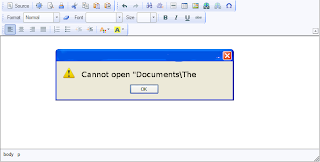
“Cannot open C:My”
“Cannot open "Test.doc"”
Main Cause of the problem: MS wordcorruption is not basic cause of this type of error. The main causeof this problem is registration of your MS word version is get expireand you need to re-register to fix this problem. The process ofre-registering is very easy and you can perform it very easily.
You can use bellow written method on MSword 97 and above version
- Boot your system.
- Click on Start --> Run
- When run box open type winword /r command and hit Enter.
Note: Dont forget to place space before forward slash.
After re-registering process is overthen double click on MS word file. You will able to open MS word file without any error. In case problem still persist then it signify that your word file is severely corrupted and in that case you need to some advance MS word repair software.

Saturday, October 11, 2014
HOW TO DRAW A PIE CHART IN MS WORD PART 1
MICROSOFT WORD DRAWING PROJECT No. 18 PART 1
TITLE: HOW TO DRAW A PIE CHART IN MS WORD
TYPE: MATHEMATICS DIAGRAM

A pie chart is also known as a circular graph. The circle is divided from the centre into several parts or sectors and each sector represents a proportion of the whole volume, amount or size of the data. The pie chart can be used in other subjects other than Mathematics. Drawing a pie chart which has no colours is not a difficult task. Actually, the real challenge is when you want to draw a coloured pie chart where each sector is filled with a different colour. Anyway, there is a way to do it in MS Word as you can see in the illustration above. Can anyone tell me how it is done? I believe that nothing beats the satisfaction of being able to create something on your own and knowing how to do it. Personally, I like to create my own clip art images with MS Word to be used in PowerPoint slides.
Monday, October 6, 2014
HOW TO CREATE GRAPHIC DESIGN IN MS WORD
MICROSOFT WORD DRAWING PROJECT No. 37
TITLE: HOW TO CREATE A DESIGN FOR AN APRON IN MS WORD
TYPE: GRAPHIC DESIGN
What do apple and health have in common? They are used in a popular proverb “An apple a day keeps the doctor away”. You have drawn the apron and the apple, then what’s next? Add in the suitable text using WordArt and you have yourself a design. I prefer to use Arial Black typeface because the letters are easy to read. I teach students how to draw Block Letters during Art lessons. The graph paper is useful in teaching students to draw block letters. Two pieces of graph paper are sufficient to draw the letters A to Z. The following Elements of Art were used to create this drawing: Line, Colour, Shape, Form and Space. In addition, the following Principles of Design were also used: Balance, Harmony, and Unity. A good design should be relevant to the theme. Therefore choosing the right illustration and text is important in creating a good design.

Now, let’s put the design on a t-shirt and see how it looks? What do you think?

Tuesday, September 30, 2014
HOW TO DRAW A COFFEE MUG IN MS WORD
MICROSOFT WORD DRAWING PROJECT NO. 2
TITLE: A COFFEE MUG ON A COASTER
TYPE: ILLUSTRATION
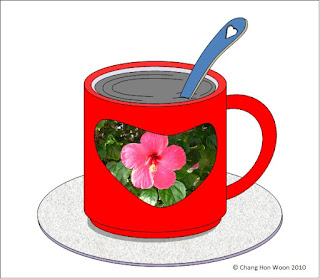
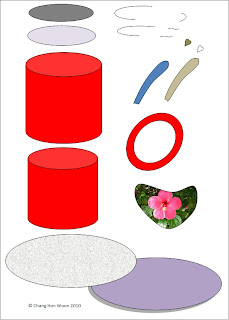
The tools needed to create the coffee mug are as follows: Can; Oval; Donut; Heart and Curve line. Draw a shape with the Curve line and then insert a picture into it by doing the following: Shape Fill > Picture > Select a picture from a folder > Insert. To create the shadow effect, click the Oval shape at the bottom and then do the following: click Shadow Effects > Drop Shadow > Shadow Style 3 and then nudge the shadow into place using the Shadow Settings. Use the Edit Points function to adjust and fine-tune the curve lines.
Monday, September 29, 2014
HOW TO DRAW A LIGHTED CANDLE IN MS WORD
MICROSOFT WORD DRAWING PROJECT No. 23 PART 1
TITLE: HOW TO DRAW A LIGHTED CANDLE IN MS WORD
TYPE: GRAPHIC DESIGN
This design can be used in many ways. I’m just trying to show how this illustration is created in MS Word. Sometimes when there is a blackout in my area due to power failure, I will light up some candles to lighten the place up. I like to put the candles on metal container covers and tin cans. Hence, this experience gave me the idea for this graphics project. The picture below shows a lighted candle placed in a tin can filled with sand. You can also see that the candlelight is in four subtle shades of yellow. How do you create these tonal values?
Here are some tips for readers to try drawing this at home. The tools needed to create this drawing are as follows: Oval, Can, Curve line, and Rectangle. By the way, make use of the Fill Effects and More Fill Colors options to add shading and decorative effects to the illustration.

How to Solve “This file is not in a recognizable format” Error of MS excel
 Image via Wikipedia
 -->
MS excel is one of the most importantspreadsheet application for computer users. Storing and managing data is very easy with Ms excel. All important data saved inside these excel sheet. Imaging the situation in which you are trying to open an important excel sheet but could not do so, it gives some error. These errors means that your spreadsheet is get corrupt and you need to repair it to repair your valuable data. Excel recovery is required to repair this damaged .xls sheet.
Microsoft offer solution for corrupt excel sheet where you have to link the corrupt spreadsheet with news one. But this solution work hardly ever. So here I am going to explain a solution to easy repair of damaged excel sheet.
Follow the steps given below to:
- Open an undamaged workbook and a new workbook.
- In the Insert menu of new workbook find hyperlink and create link with undamaged workbook. Now close undamaged workbook.
- The link in cell A1 displays the path to the non-corrupted file. Edit the formula in cell A1 by substituting the corrupted file name for the existing one.
- If it works, the corrupted file will open. In this case, copy the formula down and across until the link returns blank cells.
- Select the data, copy it, and choose Paste Special from the Edit menu. In the resulting Paste Special dialog box, click Values and click OK to paste the data over itself. Doing so removes the link formula, but the values returned by the link remain.

HOW TO DRAW A BREAD TOASTER IN MS WORD Part 1
MICROSOFT WORD DRAWING PROJECT No. 53 Part 1
TITLE: HOW TO DO A PERSPECTIVE DRAWING OF A BREAD TOASTER IN MS WORD
TYPE: GRAPHIC ART – DIGITAL DRAWING
A good product design has to be aesthetically pleasing, ergonomic and functionally useful. Applying good ergonomics to a design makes the product comfortable and efficient for the benefit of the users. This bread toaster design is angular in shape. It should have rounded edges and corners. I have to admit that this is not a good design because it’s not ergonomic. As far as human factor is concerned, we are never comfortable being around objects with sharp edges and corners. I don’t think that many people would like to buy a bread toaster designed like that. But this drawing provides a good exercise on perspective and proportion. In this project, I’ll leave aesthetics and ergonomics aside and instead focus on sharpening the drawing skills. Use a mouse to draw this picture for better result. Although this drawing is very basic but drawing it with the right proportion especially with a mouse can be quite a challenge. This is because great precision is needed to create and align the shapes and lines accurately. It also needs tremendous concentration too. The only drawing tool needed for this exercise is the Freeform line tool. Quite frankly, drawing the Happy Egg is much easier than drawing the bread toaster because the placement of drawing objects (to form the image) is not that precise.

This picture was drawn with the Freeform line tool. This three-dimensional bread toaster is viewed below the eye level.

I made used of the perspective lines to help me draw this picture. The perspective lines help us to draw pictures with the right perspective. This system helps us to accurately depict objects as how they are seen in the real world.
HOW TO DETECT UNEVEN / IMPERFECT LINES
Straight and even lines are essential for producing precision drawings.


Sunday, September 28, 2014
Why MS Word File Crash on Opening
Is MS word document close soon after you open it? If yes, then read this post to know the cause and solution to overcome this problem.
It might be possible that template got corrupted but other there could be more reasons. So let us first verify Is this due to template corruption or something else.
To verify it, Start MS word without template and add-ins loaded. Follow the steps to do so.....
Note: Remember to place space before foreword slash. In case you miss it then error can occur, “/a” stands for troubleshooting tool only. If your error got fix then it means either your Normal template or one of the files in Words Startup path are probably corrupt, so you need to try these steps:
1) Try to Rename the Normal template. In word 2007 normal template have .dotx or dotm extension.
2) For example, try to rename Normal.dot to Normal.old. It is advisable to keep only one Normal.dot file.
In case it doesnt work for you then try another method given below:
If you have template corruption problem then above written method will resolve it and word file will stop crashing. But in the case document behave in the same way then it signify that cause of problem is different and you need to apply suitable method to fix word file overcome.
It might be possible that template got corrupted but other there could be more reasons. So let us first verify Is this due to template corruption or something else.
To verify it, Start MS word without template and add-ins loaded. Follow the steps to do so.....
- Click Start and then click on Run.
- Write winword.exe /a in Run box and hit enter.
Note: Remember to place space before foreword slash. In case you miss it then error can occur, “/a” stands for troubleshooting tool only. If your error got fix then it means either your Normal template or one of the files in Words Startup path are probably corrupt, so you need to try these steps:
1) Try to Rename the Normal template. In word 2007 normal template have .dotx or dotm extension.
2) For example, try to rename Normal.dot to Normal.old. It is advisable to keep only one Normal.dot file.
In case it doesnt work for you then try another method given below:
- Move any file from Words startup path to other folder.
- Renaming any files in Words Startup path from [filename].dot to [filename].old.
- You can find the location Words Startup folder under Tools + Options + File location.
- If you have any doubts then move the files instead renaming them.
If you have template corruption problem then above written method will resolve it and word file will stop crashing. But in the case document behave in the same way then it signify that cause of problem is different and you need to apply suitable method to fix word file overcome.
HOW TO DRAW A COLLARED T SHIRT IN MS WORD PART 1
MICROSOFT WORD DRAWING PROJECT No. 15 (PART 1)
TITLE : HOW TO DRAW A COLLARED T-SHIRT IN MS WORD
TYPE : ILLUSTRATION

Try drawing the t-shirt using only the Curve line tool and fine-tune the lines using the Edit Points tool. I’ll show readers how this drawing is created in my next post. I love using the Curve line tool to draw pictures with organic shapes and fluid lines. Drawings created with the Curve line tool look natural and realistic.
Saturday, September 27, 2014
Keyboard Shortcuts for MS Word All Versions
MS Word is the best program for typing. To accelerate your work there are lots of keyboard shortcuts provided with the program. Some of the important keyboard shortcuts provided by the official support page of Microsoft are listed below:
Command Name Shortcut Keys -------------------------------------------------------- To know more, click here. |
Customize the Default Settings of MS Office

This is somewhat difficult to write about. Delivering the message to the reader is somewhat complicated. New users of Microsoft Office may not get my point. But a regular user of Microsoft Office must understand what Im talking about.
What is Default Settings?
When you open up a new document in MS Word (Suppose Word 2010), you get the followings:
- Paper Size: Letter (8.5*11)
- Orientation: Portrait
- Font: Calibiri
- Font Size: 11
- Font Style: Regular
- Line Spacing: 1.15
- After Spacing: 10 pt
- Margin: Normal (Top, Bottom, Left, Right: 1")
- And so many . . .
This is called the default settings Microsoft Word. The settings you get just after opening a program is called the default settings of that program. The developers try to use the most common settings as the default settings. So that most of the users dont need to change the settings frequently.
But the reality is quite fantastic! Every organization has its own method of working. Every person has his own choice. Naturally we need to modify the default settings of a program.
Customizing the Default Settings:
To make Microsoft Office more convenient, there is a Set as Default button in some dialogue boxes. When you change default settings from a dialogue box, you can press the Set as Default button to make it default.
Note: Default Settings varies from version to version.
Example:
There could be more than 100 dialogue boxes, where you can change the default settings. But you know this is impossible to show the procedure for each window. Here I will just show one example of customizing the default settings. I would like to show how to customize the default settings of Page Setup window of MS Word 2010:
- Run Microsoft Word
- Go to Page Setup
- Set up margin as your choice (Suppose 1" for top, bottom, left & right)
- Choose paper size (Suppose A4)
- If you want this settings for all of your documents as default, then press the Set as Default button at the bottom left corner. Press Yes to confirm.

From now, when you open a new document, you will get the paper size A4, and margin 1" as defualt settings.
Stay with Marks PC Solution to get more interesting IT topics!
Subscribe to:
Posts (Atom)