Showing posts with label 1. Show all posts
Showing posts with label 1. Show all posts
Monday, October 27, 2014
Google What is 1 button

 When you browse net and read various articles then you might see the Tweet, Facebook like, Stumble Upon button after the post. But at present time you may see another button with other sharing buttons. This is +1 button.
 The +1 button is nothing but an alternative to Facebook like button. But dont think it just like Facebook like button. It is something more than Facebook like button.
When you +1 something actually youre doing many things. Give a +1 to a post means youre recommending this post on Google Search, Sharing with your friends in your Google + Circle and most importantly youre saving the page in your +1 list.
In order to use the Google +1 button, you must have a Google Account. And the account should be visible to public. If you dont set your profile publicly visible then you will not be able to see and use +1 button.
Sometimes you may wanna save a copy of your favourite web page. But you dont need to do so if you use +1. If you see a +1 button in that web page then just give a +1 and you will find this page in your Google + profile at the +1 list!

Wednesday, October 22, 2014
Apple Releases iOS 7 1 with Numerous Accessibility Tweaks

Today, Apple released iOS 7.1 with numerous accessibility improvements. While these features are not as exciting as the accessibility features added in major releases of iOS they still offer advantages for many users. Most of the improvements focus on making the new iOS interface easier to see for people with visual impairments. Turning on bold text now makes the keyboard, calculator, and in app icons bold in addition to text. A new option found under the accessibility menu allows users to turn on button shapes which makes it easier to distinguish text from buttons. In addition to limiting the parallax effect, reduce motion now limits multitasking animations and animations in the weather and messages apps. iOS 7.1 also allows users to darken colors used in apps to make them easier to view and increase the white point of the display to cut down on glare.
.PNG "button shapes") |
| Button Shapes |
iOS 7.1 also includes a number of VoiceOver bug fixes, but some are still present in iOS 7.1. In addition to accessibility improvements iOS 7.1 includes an important stability improvement that limits a crashing issue that was present in iOS 7. Among other improvements, Touch ID finger print scanning accuracy is also improved for iPhone 5s users.
Users can download iOS 7.1 by going to settings > general > software update.
Saturday, October 11, 2014
HOW TO DRAW A PIE CHART IN MS WORD PART 1
MICROSOFT WORD DRAWING PROJECT No. 18 PART 1
TITLE: HOW TO DRAW A PIE CHART IN MS WORD
TYPE: MATHEMATICS DIAGRAM

A pie chart is also known as a circular graph. The circle is divided from the centre into several parts or sectors and each sector represents a proportion of the whole volume, amount or size of the data. The pie chart can be used in other subjects other than Mathematics. Drawing a pie chart which has no colours is not a difficult task. Actually, the real challenge is when you want to draw a coloured pie chart where each sector is filled with a different colour. Anyway, there is a way to do it in MS Word as you can see in the illustration above. Can anyone tell me how it is done? I believe that nothing beats the satisfaction of being able to create something on your own and knowing how to do it. Personally, I like to create my own clip art images with MS Word to be used in PowerPoint slides.
Monday, September 29, 2014
HOW TO DRAW A BREAD TOASTER IN MS WORD Part 1
MICROSOFT WORD DRAWING PROJECT No. 53 Part 1
TITLE: HOW TO DO A PERSPECTIVE DRAWING OF A BREAD TOASTER IN MS WORD
TYPE: GRAPHIC ART – DIGITAL DRAWING
A good product design has to be aesthetically pleasing, ergonomic and functionally useful. Applying good ergonomics to a design makes the product comfortable and efficient for the benefit of the users. This bread toaster design is angular in shape. It should have rounded edges and corners. I have to admit that this is not a good design because it’s not ergonomic. As far as human factor is concerned, we are never comfortable being around objects with sharp edges and corners. I don’t think that many people would like to buy a bread toaster designed like that. But this drawing provides a good exercise on perspective and proportion. In this project, I’ll leave aesthetics and ergonomics aside and instead focus on sharpening the drawing skills. Use a mouse to draw this picture for better result. Although this drawing is very basic but drawing it with the right proportion especially with a mouse can be quite a challenge. This is because great precision is needed to create and align the shapes and lines accurately. It also needs tremendous concentration too. The only drawing tool needed for this exercise is the Freeform line tool. Quite frankly, drawing the Happy Egg is much easier than drawing the bread toaster because the placement of drawing objects (to form the image) is not that precise.

This picture was drawn with the Freeform line tool. This three-dimensional bread toaster is viewed below the eye level.

I made used of the perspective lines to help me draw this picture. The perspective lines help us to draw pictures with the right perspective. This system helps us to accurately depict objects as how they are seen in the real world.
HOW TO DETECT UNEVEN / IMPERFECT LINES
Straight and even lines are essential for producing precision drawings.


Sunday, September 28, 2014
HOW TO DRAW A COLLARED T SHIRT IN MS WORD PART 1
MICROSOFT WORD DRAWING PROJECT No. 15 (PART 1)
TITLE : HOW TO DRAW A COLLARED T-SHIRT IN MS WORD
TYPE : ILLUSTRATION

Try drawing the t-shirt using only the Curve line tool and fine-tune the lines using the Edit Points tool. I’ll show readers how this drawing is created in my next post. I love using the Curve line tool to draw pictures with organic shapes and fluid lines. Drawings created with the Curve line tool look natural and realistic.
Saturday, September 27, 2014
HTML Tutorial 1 Creating a Simple HTML Document
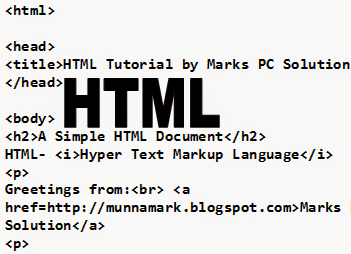
If youre regular in this site, you should know I am not a programmer. Several times, Ive mentioned that Im a person with no programming knowledge. Even my HTML knowledge is not good enough. Just few days ago, I decided to enrich my knowledge on HTML. I will publish HTML lessons for you. Thus you will be also learning HTML with me! Whenever I learn something about HTML, I will publish it here.
Im not gonna discuss about the history of HTML. Hope you all know that HTML- Hypertext Markup Language. Whatever you see on your browser when visiting any site, your browser shows it through HTML. You can easily view what a website includes. Do as below:
- Open any website in your browser.
- Right click on it.
- A menu will appear.
- Click on View Source/ View Page Source.
- A new window will open with the HTML of that website. You will see thousand lines codes! This is how your browser see a website.
Today I would like to start with an example. In this lesson you will learn how to create a simple HTML document. I mean you will get an idea about the basic structure of an HTML document.
Okay lets start. The following texts are the properties of an HTML document.
- Copy the texts, and paste them in a notepad file.
- Save the document as HTML Lesson 1 with .htm or .html extension. I mean the saved file name should look like this: HTML Lesson 1.htm or HTML Lesson 1.html.
- Remember, you can save it by any other word but it should end with .htm or .html extension.
- I recommend you to save the file on your desktop for quick access.
<html>
<head><title>HTML Tutorial by Marks PC Solution.</title></head>
<body><h2>A Simple HTML Document</h2>HTML- <i>Hypertext Markup Language</i><p>Greetings from:<br> <a href=http://munnamark.blogspot.com>Marks PC Solution</a><p>Prepared by: <b>Md. Abdur Rahaman</b><br>©2013 Marks PC Solution<br>Protected by: DMCA
</body></html>
After saving the document a new file will be appeared on your desktop named HTML Lesson 1. Double click on that file. It should be opened with your default net browser. If it doesnt then right click on that file and choose open with a browser.
After opening the document in a browser you will get the following result in the browser window:
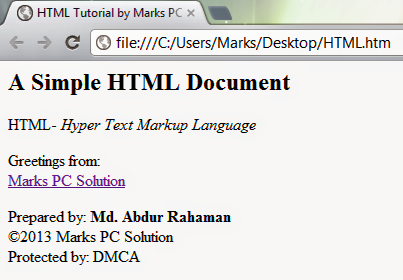
You should notice the difference between your input (HTML Code) and output (Result in the browser). In compared to the HTML you have written on the notepad is more than double what youre getting in the browser window! Are you confused with that? Actually no unnecessary commands are used in the above HTML code. Each and every symbols and characters of the above HTML code are the basic properties of any HTML document. Without them, no HTML document can be prepared.
In my next lesson of HTML, I will discuss about the basic parts of an HTML document. And I will also try to clarify the tags, symbols, codes used in this example. Get ready for that!
Note: In the above code, I have created gaps between parts. After html tag, head tag I have used enter. Basically in the document this space will have no effect. This space is only for your better understanding.
Stay with Marks PC Solution to get more interesting IT topics!
Subscribe to:
Posts (Atom)