Showing posts with label document. Show all posts
Showing posts with label document. Show all posts
Saturday, September 27, 2014
How to Open Damaged Word Document
Sometimes you may get a message that file is corrupted, whereas other times Word would simply say that it cannot open the word file. It means your word document file is get corrupted. It is not necessary that in every corruption scenario you are unable to open your document. So it depends on corruption level. There are many ways to repair corrupt documents but when document is not opening then the steps are different ones:
Solution 1: Open the damaged document in draft mode without updating links
Step 1: Configure Word
- First Start Word.
- View tab> Draft (the Document Views group)
- In Word 2007> Microsoft Office Button> Options.In Word 2010> File Menu> Options.
- Display document content section> Draft font and Picture placeholders check boxes (under Advanced options).
- General section> clear the Update automatic links> OK.
Step 2: Open the damaged document
- After that Start Word.
- In Word 2007> Microsoft Office Button> Open.In Word 2010> File Menu> Open.
- Damaged document> Open.
If you are unable to open your document through this step then go to solution 2.
Solution 2: Insert the document as a file in a new document
Step 1: Create a new blank document
- Microsoft Office Button>New.In Office 2010> File Menu> New.
- Blank document> Create.
Note: You may have to reapply some formatting to the last section of the new document.
Step 2: Insert the damaged document into the new document
- Insert tab> Insert Object> Text From File.
- Insert File dialog box> locate> damaged document> Insert.
Solution 3: Third party word repair software.These two methods are commonly use for repairing corrupt documents which are not opening. If you are still unable to open your documents then in this case you should use third party word repair software. These software repairs corrupt word documents & files after all possible corruption scenarios. I hope you will repair word file with the help of above steps. Good luck!

HTML Tutorial 1 Creating a Simple HTML Document
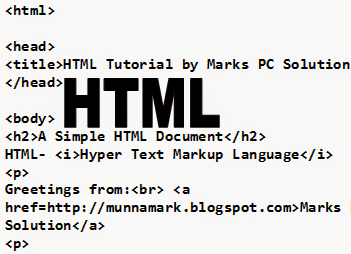
If youre regular in this site, you should know I am not a programmer. Several times, Ive mentioned that Im a person with no programming knowledge. Even my HTML knowledge is not good enough. Just few days ago, I decided to enrich my knowledge on HTML. I will publish HTML lessons for you. Thus you will be also learning HTML with me! Whenever I learn something about HTML, I will publish it here.
Im not gonna discuss about the history of HTML. Hope you all know that HTML- Hypertext Markup Language. Whatever you see on your browser when visiting any site, your browser shows it through HTML. You can easily view what a website includes. Do as below:
- Open any website in your browser.
- Right click on it.
- A menu will appear.
- Click on View Source/ View Page Source.
- A new window will open with the HTML of that website. You will see thousand lines codes! This is how your browser see a website.
Today I would like to start with an example. In this lesson you will learn how to create a simple HTML document. I mean you will get an idea about the basic structure of an HTML document.
Okay lets start. The following texts are the properties of an HTML document.
- Copy the texts, and paste them in a notepad file.
- Save the document as HTML Lesson 1 with .htm or .html extension. I mean the saved file name should look like this: HTML Lesson 1.htm or HTML Lesson 1.html.
- Remember, you can save it by any other word but it should end with .htm or .html extension.
- I recommend you to save the file on your desktop for quick access.
<html>
<head><title>HTML Tutorial by Marks PC Solution.</title></head>
<body><h2>A Simple HTML Document</h2>HTML- <i>Hypertext Markup Language</i><p>Greetings from:<br> <a href=http://munnamark.blogspot.com>Marks PC Solution</a><p>Prepared by: <b>Md. Abdur Rahaman</b><br>©2013 Marks PC Solution<br>Protected by: DMCA
</body></html>
After saving the document a new file will be appeared on your desktop named HTML Lesson 1. Double click on that file. It should be opened with your default net browser. If it doesnt then right click on that file and choose open with a browser.
After opening the document in a browser you will get the following result in the browser window:
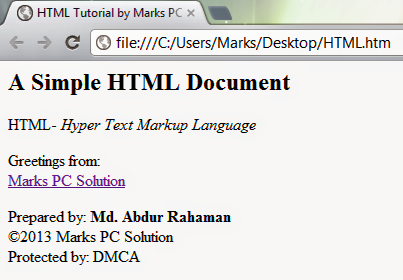
You should notice the difference between your input (HTML Code) and output (Result in the browser). In compared to the HTML you have written on the notepad is more than double what youre getting in the browser window! Are you confused with that? Actually no unnecessary commands are used in the above HTML code. Each and every symbols and characters of the above HTML code are the basic properties of any HTML document. Without them, no HTML document can be prepared.
In my next lesson of HTML, I will discuss about the basic parts of an HTML document. And I will also try to clarify the tags, symbols, codes used in this example. Get ready for that!
Note: In the above code, I have created gaps between parts. After html tag, head tag I have used enter. Basically in the document this space will have no effect. This space is only for your better understanding.
Stay with Marks PC Solution to get more interesting IT topics!
Subscribe to:
Posts (Atom)