Showing posts with label open. Show all posts
Showing posts with label open. Show all posts
Sunday, October 26, 2014
How to Solve an Error “Cannot open Documents The” of MS word
-->
When MS word gets corrupt, it givesseveral types of error while opening it. Error message is depend oncause of corruption. You will receive different type of error messagein different scenario. Here I am providing solution for “Cannotopen "DocumentsThe” error message which you will get,when you try to open MS word file. Along with this error message youmay get few massages which are written below...
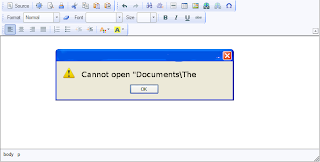
“Cannot open C:My”
“Cannot open "Test.doc"”
Main Cause of the problem: MS wordcorruption is not basic cause of this type of error. The main causeof this problem is registration of your MS word version is get expireand you need to re-register to fix this problem. The process ofre-registering is very easy and you can perform it very easily.
You can use bellow written method on MSword 97 and above version
- Boot your system.
- Click on Start --> Run
- When run box open type winword /r command and hit Enter.
Note: Dont forget to place space before forward slash.
After re-registering process is overthen double click on MS word file. You will able to open MS word file without any error. In case problem still persist then it signify that your word file is severely corrupted and in that case you need to some advance MS word repair software.

Saturday, September 27, 2014
How to solve error message “Can not open file it does not seem to be a valid archive” of corrupt zip file
The extension of Zip files is . "Zip" or ".ZIP" file and MIME (Multipurpose Internet Mail Extensions) media type application. Sometimes there are certain errors in Zip file, which occur due to some problems of the Internet. These errors usually occur when you download the Zip file, which leads to corruption. As a result of corruption, the data stored in the Zip file is inaccessible. To overcome such situations, you can restore data from a recent backup. However, if you do not stored a backup or the backup is corrupted, then you need to use zip recovery software files to recover your data.

Suppose you are trying to download attached zip files from outlook, you can not do so and get a message
"Can not open file: it does not seem to be a valid archive. If you downloaded this file, try downloading the file again."
The data stored in the zip file, becomes inaccessible after the occurrence of above error message.
Reason for error message:
The above situation usually occurs when HTTP compression is enabled in the Web Sites properties of Microsoft Internet Information Services (IIS) virtual server in outlook. As a result, when you download a zip file, IIS GZIP encoded as the browser client and passes the file directly to the decompression program, without GZIP decoding the file.
Resolution:
To solve the above problem you can chang the MIME type for the file. Zip application / x-zip-compressed to application / octet-stream. To do this, follow these steps:
* In the Start menu, select Internet Information Server (IIS) in the Administrative Tools option.
* Then, expand the server (local computer), click Web Sites and click Properties.
* Click on the MIME types and scroll through the list of registered MIME types to find the entry of . Zip.
* Then you must click zip Application/x- Zip compressed entry and then click Edit.
* Change the value of MIME type application / octet-stream.
* Finally, stop and restart the IIS Admin Service to apply the changes.
In most cases, given the previous resolutions will help you resolve problems with zip. But if the problem persists, then Zip Repair files to recover and restore corrupted data. The zip repair algorithms incorporate powerful scanning; these Zip Repair applications ensure complete recovery and restoration of your data.
"Can not open file: it does not seem to be a valid archive. If you downloaded this file, try downloading the file again."
The data stored in the zip file, becomes inaccessible after the occurrence of above error message.
Reason for error message:
The above situation usually occurs when HTTP compression is enabled in the Web Sites properties of Microsoft Internet Information Services (IIS) virtual server in outlook. As a result, when you download a zip file, IIS GZIP encoded as the browser client and passes the file directly to the decompression program, without GZIP decoding the file.
Resolution:
To solve the above problem you can chang the MIME type for the file. Zip application / x-zip-compressed to application / octet-stream. To do this, follow these steps:
* In the Start menu, select Internet Information Server (IIS) in the Administrative Tools option.
* Then, expand the server (local computer), click Web Sites and click Properties.
* Click on the MIME types and scroll through the list of registered MIME types to find the entry of . Zip.
* Then you must click zip Application/x- Zip compressed entry and then click Edit.
* Change the value of MIME type application / octet-stream.
* Finally, stop and restart the IIS Admin Service to apply the changes.
In most cases, given the previous resolutions will help you resolve problems with zip. But if the problem persists, then Zip Repair files to recover and restore corrupted data. The zip repair algorithms incorporate powerful scanning; these Zip Repair applications ensure complete recovery and restoration of your data.
How to Open Damaged Word Document
Sometimes you may get a message that file is corrupted, whereas other times Word would simply say that it cannot open the word file. It means your word document file is get corrupted. It is not necessary that in every corruption scenario you are unable to open your document. So it depends on corruption level. There are many ways to repair corrupt documents but when document is not opening then the steps are different ones:
Solution 1: Open the damaged document in draft mode without updating links
Step 1: Configure Word
- First Start Word.
- View tab> Draft (the Document Views group)
- In Word 2007> Microsoft Office Button> Options.In Word 2010> File Menu> Options.
- Display document content section> Draft font and Picture placeholders check boxes (under Advanced options).
- General section> clear the Update automatic links> OK.
Step 2: Open the damaged document
- After that Start Word.
- In Word 2007> Microsoft Office Button> Open.In Word 2010> File Menu> Open.
- Damaged document> Open.
If you are unable to open your document through this step then go to solution 2.
Solution 2: Insert the document as a file in a new document
Step 1: Create a new blank document
- Microsoft Office Button>New.In Office 2010> File Menu> New.
- Blank document> Create.
Note: You may have to reapply some formatting to the last section of the new document.
Step 2: Insert the damaged document into the new document
- Insert tab> Insert Object> Text From File.
- Insert File dialog box> locate> damaged document> Insert.
Solution 3: Third party word repair software.These two methods are commonly use for repairing corrupt documents which are not opening. If you are still unable to open your documents then in this case you should use third party word repair software. These software repairs corrupt word documents & files after all possible corruption scenarios. I hope you will repair word file with the help of above steps. Good luck!
Subscribe to:
Posts (Atom)