Showing posts with label tutorial. Show all posts
Showing posts with label tutorial. Show all posts
Saturday, September 27, 2014
HTML Tutorial 1 Creating a Simple HTML Document
If youre regular in this site, you should know I am not a programmer. Several times, Ive mentioned that Im a person with no programming knowledge. Even my HTML knowledge is not good enough. Just few days ago, I decided to enrich my knowledge on HTML. I will publish HTML lessons for you. Thus you will be also learning HTML with me! Whenever I learn something about HTML, I will publish it here.
Im not gonna discuss about the history of HTML. Hope you all know that HTML- Hypertext Markup Language. Whatever you see on your browser when visiting any site, your browser shows it through HTML. You can easily view what a website includes. Do as below:
- Open any website in your browser.
- Right click on it.
- A menu will appear.
- Click on View Source/ View Page Source.
- A new window will open with the HTML of that website. You will see thousand lines codes! This is how your browser see a website.
Today I would like to start with an example. In this lesson you will learn how to create a simple HTML document. I mean you will get an idea about the basic structure of an HTML document.
Okay lets start. The following texts are the properties of an HTML document.
- Copy the texts, and paste them in a notepad file.
- Save the document as HTML Lesson 1 with .htm or .html extension. I mean the saved file name should look like this: HTML Lesson 1.htm or HTML Lesson 1.html.
- Remember, you can save it by any other word but it should end with .htm or .html extension.
- I recommend you to save the file on your desktop for quick access.
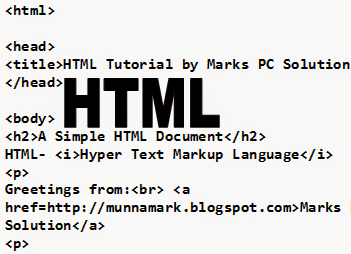
<html>
<head><title>HTML Tutorial by Marks PC Solution.</title></head>
<body><h2>A Simple HTML Document</h2>HTML- <i>Hypertext Markup Language</i><p>Greetings from:<br> <a href=http://munnamark.blogspot.com>Marks PC Solution</a><p>Prepared by: <b>Md. Abdur Rahaman</b><br>©2013 Marks PC Solution<br>Protected by: DMCA
</body></html>
After saving the document a new file will be appeared on your desktop named HTML Lesson 1. Double click on that file. It should be opened with your default net browser. If it doesnt then right click on that file and choose open with a browser.
After opening the document in a browser you will get the following result in the browser window:
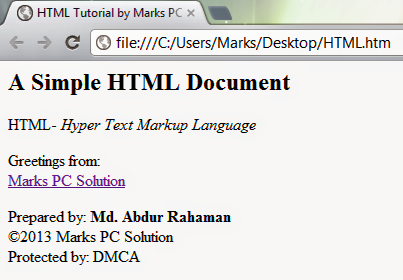
You should notice the difference between your input (HTML Code) and output (Result in the browser). In compared to the HTML you have written on the notepad is more than double what youre getting in the browser window! Are you confused with that? Actually no unnecessary commands are used in the above HTML code. Each and every symbols and characters of the above HTML code are the basic properties of any HTML document. Without them, no HTML document can be prepared.
In my next lesson of HTML, I will discuss about the basic parts of an HTML document. And I will also try to clarify the tags, symbols, codes used in this example. Get ready for that!
Note: In the above code, I have created gaps between parts. After html tag, head tag I have used enter. Basically in the document this space will have no effect. This space is only for your better understanding.
Stay with Marks PC Solution to get more interesting IT topics!

Pivot Table tutorial
Pivot Table tutorial for MS Excel 2007 and Excel 2010
Know What Is A Pivot Table?
The Pivot tables are used to summarize, analyze, explore and present your data. A Pivot table is a way to extract data from a long list of information and present it in a more meaningful and user friendly understandable format. For example, lets say that we have the data of student scores in a spreadsheet, you could turn this into a pivot table, and then view only the Math scores for each pupil.Learn How To Create A Pivot Table In Excel 2010
Here are the steps to create a Pivot table in Excel 2010.Step 1: First of all, please make sure to select the data range for which you want to make the pivot table.

Step 2: Insert the Pivot Table by going to the Insert tab and then clicking the Pivot Table icon.

Step 3: Select the target cells where you want to place the pivot table. For starters, select the New Worksheet option.

Step 4: The new worksheet will open and you will be able to see the pivot table that you just created, you can now generate the report from this table and can perform various operations on this table for better visualization and presentation of data. Just for example I calculated the sum of all of the selected cells.

In the right side, you will see the Pivot Table Panel which contains many useful options to work with the Pivot table.

What is New In The Excel 2010 Pivot Table
By way for discussed in the introductory paragraph, Pivot Tables were also present in Microsoft Excel 2007, lets see what new enhancements have been made to the Excel 2010 Pivot tables.1. It includes a new feature called ShowValues As, right click the Pivot table and choose Show Values As, you will see many new options here. It helps you in trying out several different calculations until you get exactly what you were looking for.

2. It offers many new calculations, almost six new calculations have been added to it.
3. It includes some great visual totals. Visual Totals refer to what totals should be shown when one or more members are filtered. You can turn this feature ON of OFF, simply right click the Pivot Table and choose the Pivot Table Options option here.
We know In the PivotTable Options window, go to the Tools & Filter tab and check/uncheck the Include filtered items in set totals option to enable/disable it.

Here the enhanced pivot table feature of Excel 2010 add feathers to this great product by Microsoft.
Subscribe to:
Posts (Atom)