Showing posts with label simple. Show all posts
Showing posts with label simple. Show all posts
Monday, September 29, 2014
Use If This Then That IFTTT to Automate Simple Tasks
To start using the app you can choose from hundreds of pre-made recipes or make your own. A recipe could say " If I post a new post on Blogger, tweet its title and a link, "or "when I arrive at school,text my mom" The app constantly checks your recipes and completes the action at the correct time. It reduces the need to do many monotonous tasks. It also bridges the gap between different web based services allowing you to spend more time using the services and less time managing your digital life.
IFTTT also integrates with certain connected home systems. Using IFTTT in concert with the WeMo connected home platform you can have your lights turn on automatically when you get close to home or turn off the TV when you are far from home.
Some of these recipes can be helpful for people with executive functioning difficulties. For example, the app can automatically check the weather, and if it is going to rain remind you to wear a jacket. The possibilities are almost endless because of the customization the app offers. The app can also complete actions based on your location. You can set up the app to call, email, or text message someone when you arrive or leave a certain location. This could be helpful for parents who need to makes sure their kid has arrived to school safely in the morning. For example, you could set your childs iPhone to email you everytime they arrive or leave school.
IFTTT has an iOS app and website both are free of charge. Click read more below to view screen shots of the IFTTT app in action.


Saturday, September 27, 2014
HTML Tutorial 1 Creating a Simple HTML Document
If youre regular in this site, you should know I am not a programmer. Several times, Ive mentioned that Im a person with no programming knowledge. Even my HTML knowledge is not good enough. Just few days ago, I decided to enrich my knowledge on HTML. I will publish HTML lessons for you. Thus you will be also learning HTML with me! Whenever I learn something about HTML, I will publish it here.
Im not gonna discuss about the history of HTML. Hope you all know that HTML- Hypertext Markup Language. Whatever you see on your browser when visiting any site, your browser shows it through HTML. You can easily view what a website includes. Do as below:
- Open any website in your browser.
- Right click on it.
- A menu will appear.
- Click on View Source/ View Page Source.
- A new window will open with the HTML of that website. You will see thousand lines codes! This is how your browser see a website.
Today I would like to start with an example. In this lesson you will learn how to create a simple HTML document. I mean you will get an idea about the basic structure of an HTML document.
Okay lets start. The following texts are the properties of an HTML document.
- Copy the texts, and paste them in a notepad file.
- Save the document as HTML Lesson 1 with .htm or .html extension. I mean the saved file name should look like this: HTML Lesson 1.htm or HTML Lesson 1.html.
- Remember, you can save it by any other word but it should end with .htm or .html extension.
- I recommend you to save the file on your desktop for quick access.
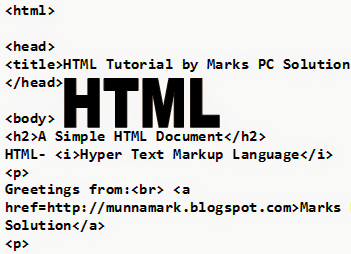
<html>
<head><title>HTML Tutorial by Marks PC Solution.</title></head>
<body><h2>A Simple HTML Document</h2>HTML- <i>Hypertext Markup Language</i><p>Greetings from:<br> <a href=http://munnamark.blogspot.com>Marks PC Solution</a><p>Prepared by: <b>Md. Abdur Rahaman</b><br>©2013 Marks PC Solution<br>Protected by: DMCA
</body></html>
After saving the document a new file will be appeared on your desktop named HTML Lesson 1. Double click on that file. It should be opened with your default net browser. If it doesnt then right click on that file and choose open with a browser.
After opening the document in a browser you will get the following result in the browser window:
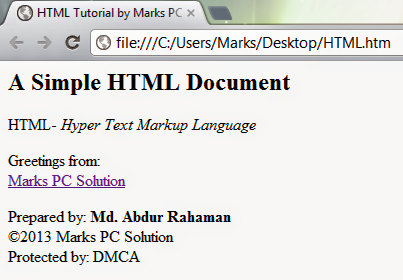
You should notice the difference between your input (HTML Code) and output (Result in the browser). In compared to the HTML you have written on the notepad is more than double what youre getting in the browser window! Are you confused with that? Actually no unnecessary commands are used in the above HTML code. Each and every symbols and characters of the above HTML code are the basic properties of any HTML document. Without them, no HTML document can be prepared.
In my next lesson of HTML, I will discuss about the basic parts of an HTML document. And I will also try to clarify the tags, symbols, codes used in this example. Get ready for that!
Note: In the above code, I have created gaps between parts. After html tag, head tag I have used enter. Basically in the document this space will have no effect. This space is only for your better understanding.
Stay with Marks PC Solution to get more interesting IT topics!
Subscribe to:
Posts (Atom)