Showing posts with label create. Show all posts
Showing posts with label create. Show all posts
Tuesday, October 21, 2014
Create Automatic Screen Shots of Your Tasks with Steps Recorder!

Dear readers! Couple of months ago I wrote about how to create screen shot by snipping tool. Snipping tool is an easy way to capture image or screen of any window.
If youre interested to know more about snipping tool then click here.
Snipping tool is a manual tool to capture image. But today I will discuss about Steps Recorder which is an automatic tool to capture image or screen. You can use it for different purposes. Say for example, you can use it to make tutorial of something. When are writing about how to do something then you can use this tool to record the process with your written instructions.

Steps Recorder is built in with Windows 8. But it was also available in Windows 7 named Problem Steps Recorder. Only the name of this app has been changed everything remain same.
To start and use the recorder follow the instructions below:
- Windows 8 users, Press Start and simply type Steps then choose the Steps Recorder. And windows 7 users Press Start + R > type psr > Press Enter.
- Now it is active. To start the record press Start record. (Shortcut key- Alt + A)
- Now do your normal job that will be recorded.
- Remember, when you click on something it will be recorded. And you will see a red button with every record.
- Anytime you can pause or resume the recorder.
- Once your task finished stop the recorder. (Alt+O)
- When save box appeared press the Save button. (Alt+V)
- Give a name to the file. The file will be saved with .zip extension.
- When you open the saved file, it will opened with your browser.
And while using this app, you may find many useful tricks. Dont forget to share your ideas with us. Comment below!
Stay with Marks PC Solution to get more interesting IT topics!

Friday, October 10, 2014
How to Create Password Reset Disk

For your computer security you can set start up password. Whenever you turn on PC, Windows ask you to enter password. Then you enter password and get access to the desktop. And all of us know that it is a normal process.
But, if your forget your password? Then what?
You might think experts can easily break it and have access to the PC! And as youre not expert so enter the DVD in the drive and start installing Windows again. And you lose all of your files and folders that is stored on installation drive.
But you can avoid such type of hazard very easily. I dont advise you to write down your pass in the diary or calender. Because this is not safe. Just spend few minutes to create a password reset disk. Its safe and easy. And there is no risk. Follow the steps below:
- First make sure youve connected your USB Flash Drive in the port. You dont need to format the disk. And your files will not be affected.
- Then go to the User Accounts from Control Panel.
- Now hit on the Create a password reset disk option from the left panel.
- Youll see Forgotten Password Wizard. Click Next.
- Select the drive that is to be used as reset disk. Click Next.
- Enter the current password if any. Otherwise leave it blank.
- Click next and wait for the processing. Click Next again. Then Finish.
The disk is ready for use. Now open your USB drive and look for a 2 KB file named userkey.psw. This is the file that can help you to reset the password. Dont delete it.
Now restart your PC and try to access by entering a wrong password. Youll see the Reset Password option. Click on it and type a new password. And from now you can use this password.
You can change your password as many time as you wish by the same disk.
 |
| Click to enlarge image |
Caution: Anyone can change your password if he knows about your reset disk. So make sure that unauthorized person is not familiar with your reset disk.
NB: This system has been tested on Windows 7 and 8. And it will work only on that PC from where the disk is created.
Fun Fact: Youve to create this disk before forgetting password. After forgetting this password, you cant create this disk.
Stay with Marks PC Solution to get more interesting IT topics!
Monday, October 6, 2014
HOW TO CREATE GRAPHIC DESIGN IN MS WORD
MICROSOFT WORD DRAWING PROJECT No. 37
TITLE: HOW TO CREATE A DESIGN FOR AN APRON IN MS WORD
TYPE: GRAPHIC DESIGN
What do apple and health have in common? They are used in a popular proverb “An apple a day keeps the doctor away”. You have drawn the apron and the apple, then what’s next? Add in the suitable text using WordArt and you have yourself a design. I prefer to use Arial Black typeface because the letters are easy to read. I teach students how to draw Block Letters during Art lessons. The graph paper is useful in teaching students to draw block letters. Two pieces of graph paper are sufficient to draw the letters A to Z. The following Elements of Art were used to create this drawing: Line, Colour, Shape, Form and Space. In addition, the following Principles of Design were also used: Balance, Harmony, and Unity. A good design should be relevant to the theme. Therefore choosing the right illustration and text is important in creating a good design.

Now, let’s put the design on a t-shirt and see how it looks? What do you think?

Monday, September 29, 2014
Quizlet Flashcard App Create Share and Study
Quizlet is a website where users can create, share, and study flashcards. Users can make a study set on the internet and then study them on a computer or using the free Quizlet iOS app. The app is compatible with iPhone and iPod touch. Teachers can also make a study sets for their classes. Quizlet also offers pre-made flashcard sets for popular vocabulary books, SAT vocabulary, and more. Flashcards can also include images to aid in studying. Once the study set is open you can view the terms in list mode or in flashcard mode. Watch the video above to learn more. Both modes include speak buttons which speak the terms in a high quality text-to-speech voice. Quizlet is compatible with Apples VoiceOver. Click here to download the free app.

Click read more below to view screenshots of the app in action.


Sunday, September 28, 2014
How to Create Bootable Windows Disk

Hello Windows lovers? How are you? Today I am gonna share how to copy a bootable Windows disk I mean how to back up a Windows CD/ DVD disk. Suppose you purchased a Windows from Microsoft costing $200 and it doesnt work anymore after installing Windows for few times. Is it fair? Not at all - lets punish Microsoft!!
Necessary Tools
- Windows Installation CD/ DVD (Maybe Windows 8, 7 or XP)
- Blank Recordable CD/ DVD as per your requirement (CD for Windows XP Only)
- At least one DVD Writer (Or two if available)
- Burning Software like Nero or Infra Recorder (Im gonna use Infra)
- And of course a PC user with sufficient operating knowledge!
And you should know, if you simply copy a Windows disk and burn it to another blank disk, then you will get something on that disk. But it will not be usable. Even if youre able to start installing Windows from running condition, it will be stopped installing after reboot. That means your disk will not be bootable. And you will not be able to set up Windows from a non bootable disk. So you have to create a data disk which will be bootable. Hope you got my point.
Here, for the purpose of this tutorial, Im gonna use Windows 8 Pro and Infra Recorder as burning software. So I will use the word Windows 8 and Infra Recorder evrywhere. But it applies for other versions of Windows too.
You can also use Nero. But always remember, whatever you do, you have to create a data disk.
Lets Start
- Insert your Windows 8 Disk into the DVD Drive
- Now run Infra Recorder (Please download if you dont have it. Its free)
- Go to the Menu bar > Actions > Copy Disk > To a Disk Image . . .
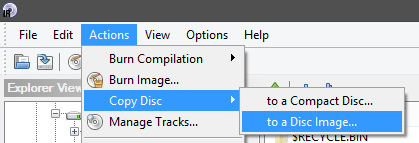
Now you will get another window as below -
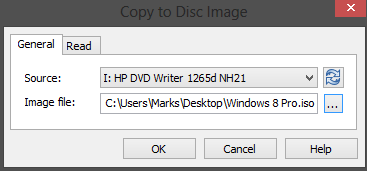
Preparing the ISO File
Now select your source file I mean the Windows 8 Disk location. Normally it detects your drive automatically. Now manually choose the destination of your Windows Image file (ISO file), name it as Windows 8.iso and hit OK. Now copying will be started. Wait for the task to be finished. It may take few minutes. After completing the task, Windows disk will be ejected automatically. And you will get an iso image of your Windows.
Now insert a blank DVD in the drive. The size of a single layer DVD is usually 4.7 GB. Try to use a good disk. Otherwise it will not be durable.
Burning the Image to Blank DVD
Go to the Infra Recorder again and choose Burn Image from Actions menu. Locate Windows 8.iso from your hard disk and open it. Choose the drive which contains blank DVD and hit OK. And the burning process will be started immediately.
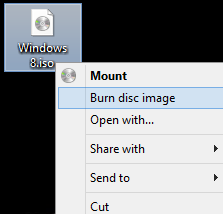
You can also burn through Windows 8. No third party software is needed. If you have previously saved copy of a Windows iso image then you dont need Nero or Infra Recorder. Simply click right mouse button over the Windows.iso file and choose Burn Disk Image. Choose your DVD drive and start burning!
Caution
Now insert a blank DVD in the drive. The size of a single layer DVD is usually 4.7 GB. Try to use a good disk. Otherwise it will not be durable.
Burning the Image to Blank DVD
Go to the Infra Recorder again and choose Burn Image from Actions menu. Locate Windows 8.iso from your hard disk and open it. Choose the drive which contains blank DVD and hit OK. And the burning process will be started immediately.
You can also burn through Windows 8. No third party software is needed. If you have previously saved copy of a Windows iso image then you dont need Nero or Infra Recorder. Simply click right mouse button over the Windows.iso file and choose Burn Disk Image. Choose your DVD drive and start burning!
Caution
- Make sure that your master disk is okay and free of scratches.
- Use quality blank disk.
- Before inserting the disk to the drive, gently clean it with a soft tissue paper.
- Any interruption in the power supply during this operation is not acceptable.
If you face any problem, please inform me.
Stay with Marks PC Solution to get more interesting IT topics!
Subscribe to:
Posts (Atom)