Showing posts with label windows. Show all posts
Showing posts with label windows. Show all posts
Tuesday, October 7, 2014
Give your Android Device Windows 8 Look !!!

Today Ive come with an interesting and funny post for you. Maybe youve already realized what the topic is. Because the post title defines the post clearly!
Android OS is now very popular for mobile devices. Even with some limitations, exciting features of Android devices are now minimizing the Market Share of Apple and Samsung. On the other hand, Nokia is out of competition for last few years. But the Lumia Series are now getting popularity among the mobile users.
Before moving to the topic Id like to share something with you. You know Ive moved from Dhaka to Khulna with my new job. Now I am in Eid Vacation. I hardly used mobile earlier. But as I am now in Khulna, I need to contact home frequently. So I purchased an Android Phone. Normally I dont write about mobile devices. Only few posts have been published so far. But from now and then you may get more tips on Mobile Devices!
Okay lets back to the track. Im gonna show a magical tips today- Convert Android into Windows! Get ready for that . . .
Download Launcher 8
- Hit on the above Download Link and download the file named Android to Windows.
- This is a zipped file (2.66 MB)
- After downloading the file you need to unzip it.
- Now connect your phone to PC and copy the file to your phone memory card. (You just need to copy the file to your memory card any how. You can use Bluetooth or card reader too.)
- Now go to your device file explorer. Locate the file where youve kept it. Hit the file named Launcher8_1.2.6.2-1.apk.
- A new screen will appear and ask you to give permission to install it. (Read the important message before installing)
- Hit on the install button and wait few seconds. Now hit on the open button and see magic.
Important: Before you install, you must know:
Normally android will not let you install third party tools unless it is downloaded from Google Play Store. You may get error/ warning message when you hit on the Launcher 8 file. To avoid warning and continue to installation you need to change your settings as below:
- Go to the Settings > Applications > Check the option named Unknown Sources (Allow installation of non-Market applications) > Thats it.
What is this actually?
This is nothing but a theme of Windows 8. After installing this theme on your Android Device, your phone will look like Nokia Lumia or Windows Phone. You will be able to see live tiles. But all other tasks will be operated by Android System. This theme pack works with both Mobile and Tablet.
When you click on the home button of your device, it will ask you whether to complete action using Launcher 8 or Android.
Dont be afraid. Its simply a look of Windows 8. All your settings, system will remain unchanged.
And if you face any problem or if you dont wanna use it no problem. You can easily uninstall it from your device.
How to Uninstall?
Very Simple. Just follow the process below:
Settings > Applications > Manage Applications > Hit on the Launcher 8 > Hit on the Uninstall button.
Please let me know by comment- Whether you enjoyed this or not . . . :)
Stay with Marks PC Solution to get more interesting IT topics!

Sunday, September 28, 2014
How to Create Bootable Windows Disk

Hello Windows lovers? How are you? Today I am gonna share how to copy a bootable Windows disk I mean how to back up a Windows CD/ DVD disk. Suppose you purchased a Windows from Microsoft costing $200 and it doesnt work anymore after installing Windows for few times. Is it fair? Not at all - lets punish Microsoft!!
Necessary Tools
- Windows Installation CD/ DVD (Maybe Windows 8, 7 or XP)
- Blank Recordable CD/ DVD as per your requirement (CD for Windows XP Only)
- At least one DVD Writer (Or two if available)
- Burning Software like Nero or Infra Recorder (Im gonna use Infra)
- And of course a PC user with sufficient operating knowledge!
And you should know, if you simply copy a Windows disk and burn it to another blank disk, then you will get something on that disk. But it will not be usable. Even if youre able to start installing Windows from running condition, it will be stopped installing after reboot. That means your disk will not be bootable. And you will not be able to set up Windows from a non bootable disk. So you have to create a data disk which will be bootable. Hope you got my point.
Here, for the purpose of this tutorial, Im gonna use Windows 8 Pro and Infra Recorder as burning software. So I will use the word Windows 8 and Infra Recorder evrywhere. But it applies for other versions of Windows too.
You can also use Nero. But always remember, whatever you do, you have to create a data disk.
Lets Start
- Insert your Windows 8 Disk into the DVD Drive
- Now run Infra Recorder (Please download if you dont have it. Its free)
- Go to the Menu bar > Actions > Copy Disk > To a Disk Image . . .
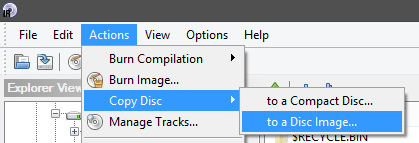
Now you will get another window as below -
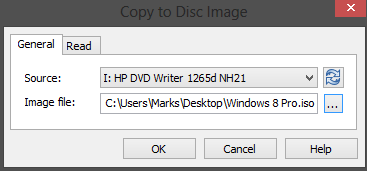
Preparing the ISO File
Now select your source file I mean the Windows 8 Disk location. Normally it detects your drive automatically. Now manually choose the destination of your Windows Image file (ISO file), name it as Windows 8.iso and hit OK. Now copying will be started. Wait for the task to be finished. It may take few minutes. After completing the task, Windows disk will be ejected automatically. And you will get an iso image of your Windows.
Now insert a blank DVD in the drive. The size of a single layer DVD is usually 4.7 GB. Try to use a good disk. Otherwise it will not be durable.
Burning the Image to Blank DVD
Go to the Infra Recorder again and choose Burn Image from Actions menu. Locate Windows 8.iso from your hard disk and open it. Choose the drive which contains blank DVD and hit OK. And the burning process will be started immediately.
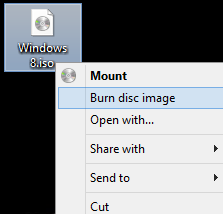
You can also burn through Windows 8. No third party software is needed. If you have previously saved copy of a Windows iso image then you dont need Nero or Infra Recorder. Simply click right mouse button over the Windows.iso file and choose Burn Disk Image. Choose your DVD drive and start burning!
Caution
Now insert a blank DVD in the drive. The size of a single layer DVD is usually 4.7 GB. Try to use a good disk. Otherwise it will not be durable.
Burning the Image to Blank DVD
Go to the Infra Recorder again and choose Burn Image from Actions menu. Locate Windows 8.iso from your hard disk and open it. Choose the drive which contains blank DVD and hit OK. And the burning process will be started immediately.
You can also burn through Windows 8. No third party software is needed. If you have previously saved copy of a Windows iso image then you dont need Nero or Infra Recorder. Simply click right mouse button over the Windows.iso file and choose Burn Disk Image. Choose your DVD drive and start burning!
Caution
- Make sure that your master disk is okay and free of scratches.
- Use quality blank disk.
- Before inserting the disk to the drive, gently clean it with a soft tissue paper.
- Any interruption in the power supply during this operation is not acceptable.
If you face any problem, please inform me.
Stay with Marks PC Solution to get more interesting IT topics!
Saturday, September 27, 2014
Windows Phone 7 5 Missing APIs
Windows Phone has a number of missing APIs that this post will document.
- Changing Wallpaper
 Although user can change wallpaper manually through phone settings, there is no API exposed that would allow to do the same. What that means, is that wallpaper will be the same every single day, unless user is irritated so much and changes it manually. There are many nice programs that automatically update wallpaper daily, for example put new NASA image as background wallpaper on your desktop, like Picturethrill (http://picturethrill.codeplex.com/). Alas, they cannot exist on Windows Phone. Android, on the other hand has full support for such APIs.
 Supporting these missing APIs will allow new programs and scenarios to be created on Windows Phone. We hope that in the future support for them will be added.
Subscribe to:
Posts (Atom)