Showing posts with label your. Show all posts
Showing posts with label your. Show all posts
Thursday, October 23, 2014
Printer Pro For Allows You To Print From Your iOS Device

 Printer Pro for iPhone, iPod Touch and iPad allows you to print to most printers from your iOS devices. Click here for the iPad app and here for the iPhone and iPod Touch app. Printer Pro is not a universal app so you will need to buy the app separately for your iPhone and iPad in order to have the best experience. Printer Pro allows you to print to most Wi-Fi printer and any printer attached to your computer by downloading a desktop app. To test to make sure your printer is compatible you can download Printer Pro Lite by clicking here. Setting up is relatively quick and easy. Once you set up your printer the app will remember your printer and you will not need to set it up each time. Printer Pro allows you to print email attachments, files from Dropbox, Web pages, Photos and Contacts. Click read more below to see screen shots of Printer Pro.


This app was provided complimentary to the reviewer.

Tuesday, October 21, 2014
Create Automatic Screen Shots of Your Tasks with Steps Recorder!

Dear readers! Couple of months ago I wrote about how to create screen shot by snipping tool. Snipping tool is an easy way to capture image or screen of any window.
If youre interested to know more about snipping tool then click here.
Snipping tool is a manual tool to capture image. But today I will discuss about Steps Recorder which is an automatic tool to capture image or screen. You can use it for different purposes. Say for example, you can use it to make tutorial of something. When are writing about how to do something then you can use this tool to record the process with your written instructions.

Steps Recorder is built in with Windows 8. But it was also available in Windows 7 named Problem Steps Recorder. Only the name of this app has been changed everything remain same.
To start and use the recorder follow the instructions below:
- Windows 8 users, Press Start and simply type Steps then choose the Steps Recorder. And windows 7 users Press Start + R > type psr > Press Enter.
- Now it is active. To start the record press Start record. (Shortcut key- Alt + A)
- Now do your normal job that will be recorded.
- Remember, when you click on something it will be recorded. And you will see a red button with every record.
- Anytime you can pause or resume the recorder.
- Once your task finished stop the recorder. (Alt+O)
- When save box appeared press the Save button. (Alt+V)
- Give a name to the file. The file will be saved with .zip extension.
- When you open the saved file, it will opened with your browser.
And while using this app, you may find many useful tricks. Dont forget to share your ideas with us. Comment below!
Stay with Marks PC Solution to get more interesting IT topics!
Sunday, October 19, 2014
Add Print as PDF Button in Your Blog!
Sometimes your blog or website reader may wanna save the post as PDF. Or they may want to print it. And there are many free tools to add Save as PDF button. But the problem is that, most of the free tools doesnt allow you to remove the background images of your site. I mean this is not print friendly. As a result whole web page is saved. And this is very irritating.
Today Im sharing a code that is free from this problem. It allows you to save only the text with related image. Lets try this-
- Sign in into your blog. Then go to design.
- From the left panel, hit on the Layout button.
- Now click on Add a Gadget.
- Choose HTML/ JavaScript.
- Now copy and paste the following code into the Content Box.
- Save the gadget and view your blog to see the change!
<script src="http://cdn.printfriendly.com/printfriendly.js" type="text/javascript"></script><script type="text/javascript">document.doAT = function(cl){var myclass = new RegExp("hentry");var myTitleContainer = new RegExp("post-title");var myPostContent = new RegExp("post-footer");var elem = this.getElementsByTagName("div");for (var i = 0; i < elem.length; i++){var classes = elem[i].className;if (myclass.test(classes)){var container = elem[i];for (var b = 0; b < container.childNodes.length; b++){var item = container.childNodes[b].className;if (myTitleContainer.test(item)){var link = container.childNodes[b].getElementsByTagName("a");if (typeof(link[0]) != "undefined"){var url = link[0].href;var index_page = true;}else{var url = document.url;var index_page = false;}if (typeof(url) == "undefined"|| url == "undefined" ){url = window.location.href;var index_page = false;}}if (myPostContent.test(item)){var footer = container.childNodes[b];}}var n = document.createElement("div");if (index_page == true) {var at = <a href= + url + ?pfstyle=wp + style="float:right; margin-right: 1em; color:#6D9F00; text-decoration:none;" class="printfriendly" title="Printer Friendly and PDF"><img style="border:none;" src="http://cdn.printfriendly.com/button-print-grnw20.png" alt="Print Friendly and PDF"/></a>;}else {var at = <a href="http://www.printfriendly.com" style="float:right; margin-right: 1em; color:#6D9F00; text-decoration:none;" class="printfriendly" onclick="window.print(); return false;" title="Printer Friendly and PDF"><img style="border:none;" src="http://cdn.printfriendly.com/button-print-grnw20.png" alt="Print Friendly and PDF"/></a>;}n.innerHTML = at;var origFooter = footer.innerHTML;footer.innerHTML = n.innerHTML + origFooter;footer.style.overflow = "hidden";}}return true;};document.doAT("hentry");</script>
If you wanna place the button at the left side then replace the red colored words as- float:left. And if you are expert in coding like html, CSS, then you can easily place this code anywhere you want.
Code for other Websites Other than Blogger:
<script src="http://cdn.printfriendly.com/printfriendly.js" type="text/javascript"></script><a href="http://www.printfriendly.com" style=" color:#6D9F00; text-decoration:none;" class="printfriendly" onclick="window.print(); return false;" title="Printer Friendly and PDF"><img style="border:none;" src="http://cdn.printfriendly.com/button-print-grnw20.png" alt="Print Friendly and PDF"/></a>

Stay with Marks PC Solution to get more interesting IT topics!
Tuesday, October 7, 2014
Give your Android Device Windows 8 Look !!!

Today Ive come with an interesting and funny post for you. Maybe youve already realized what the topic is. Because the post title defines the post clearly!
Android OS is now very popular for mobile devices. Even with some limitations, exciting features of Android devices are now minimizing the Market Share of Apple and Samsung. On the other hand, Nokia is out of competition for last few years. But the Lumia Series are now getting popularity among the mobile users.
Before moving to the topic Id like to share something with you. You know Ive moved from Dhaka to Khulna with my new job. Now I am in Eid Vacation. I hardly used mobile earlier. But as I am now in Khulna, I need to contact home frequently. So I purchased an Android Phone. Normally I dont write about mobile devices. Only few posts have been published so far. But from now and then you may get more tips on Mobile Devices!
Okay lets back to the track. Im gonna show a magical tips today- Convert Android into Windows! Get ready for that . . .
Download Launcher 8
- Hit on the above Download Link and download the file named Android to Windows.
- This is a zipped file (2.66 MB)
- After downloading the file you need to unzip it.
- Now connect your phone to PC and copy the file to your phone memory card. (You just need to copy the file to your memory card any how. You can use Bluetooth or card reader too.)
- Now go to your device file explorer. Locate the file where youve kept it. Hit the file named Launcher8_1.2.6.2-1.apk.
- A new screen will appear and ask you to give permission to install it. (Read the important message before installing)
- Hit on the install button and wait few seconds. Now hit on the open button and see magic.
Important: Before you install, you must know:
Normally android will not let you install third party tools unless it is downloaded from Google Play Store. You may get error/ warning message when you hit on the Launcher 8 file. To avoid warning and continue to installation you need to change your settings as below:
- Go to the Settings > Applications > Check the option named Unknown Sources (Allow installation of non-Market applications) > Thats it.
What is this actually?
This is nothing but a theme of Windows 8. After installing this theme on your Android Device, your phone will look like Nokia Lumia or Windows Phone. You will be able to see live tiles. But all other tasks will be operated by Android System. This theme pack works with both Mobile and Tablet.
When you click on the home button of your device, it will ask you whether to complete action using Launcher 8 or Android.
Dont be afraid. Its simply a look of Windows 8. All your settings, system will remain unchanged.
And if you face any problem or if you dont wanna use it no problem. You can easily uninstall it from your device.
How to Uninstall?
Very Simple. Just follow the process below:
Settings > Applications > Manage Applications > Hit on the Launcher 8 > Hit on the Uninstall button.
Please let me know by comment- Whether you enjoyed this or not . . . :)
Stay with Marks PC Solution to get more interesting IT topics!
Sunday, October 5, 2014
How to Share your presentation Online in PowerPoint 2013
If you to want to meet your client in real time to create a PowerPoint presentation, it was not possible in PowerPoint till now. To make it possible, Microsoft introduced a free public service that is Office Presentation Service in PowerPoint 2013 that creates a complete real time collaboration experience. Lets have a look of this feature:
Sharing a PowerPoint file:
Share your presentation by click on File > Share > Present Online & then select Office Presentation Service then Select the Enable remote viewers to download the presentation check box and click Present Online as shown in figure. This feature enables your client to download the presentation and view the slides on their own.

To send your meeting invitations to your clients, click on Copy Link to copy and paste the meeting hyperlink as shown in picture. Through this, your clients can access it, such as in a Skype chat window. Alternatively, you can send this link through email by selecting Send in Email option or select Send in IM to send using your existing IM chat client.

If you are ready to start present your presentation in front of your clients then just click on Start Presentation button. When your clients click on the hyperlink, a browser window will open and the presentation automatically will display. For this, your clients have no need to install PowerPoint or any other product installed on their computer.
If you want to end this presentation then just press Esc to stop Slide Show View, and then on the Present Online tab, click End Online Presentation.

Click on ‘End Online Presentation, to confirm end presentation.

You can also share a presentation with an embedded video. Your all clients can watch embedded video together.
Thanks for reading this article & take a live experience of this exciting feature by using above steps.
Sharing a PowerPoint file:
Share your presentation by click on File > Share > Present Online & then select Office Presentation Service then Select the Enable remote viewers to download the presentation check box and click Present Online as shown in figure. This feature enables your client to download the presentation and view the slides on their own.
To send your meeting invitations to your clients, click on Copy Link to copy and paste the meeting hyperlink as shown in picture. Through this, your clients can access it, such as in a Skype chat window. Alternatively, you can send this link through email by selecting Send in Email option or select Send in IM to send using your existing IM chat client.
If you are ready to start present your presentation in front of your clients then just click on Start Presentation button. When your clients click on the hyperlink, a browser window will open and the presentation automatically will display. For this, your clients have no need to install PowerPoint or any other product installed on their computer.
If you want to end this presentation then just press Esc to stop Slide Show View, and then on the Present Online tab, click End Online Presentation.
Click on ‘End Online Presentation, to confirm end presentation.
You can also share a presentation with an embedded video. Your all clients can watch embedded video together.
Thanks for reading this article & take a live experience of this exciting feature by using above steps.
Wednesday, October 1, 2014
Submit Your Website or Blog in Search Engines for Free

Web developer or blogger already know that it is not a very easy task to drive traffic from search engines. It takes huge time to perform SEO activities for a site. Forum posting, article writing, social connection, back linking, keyword selection and so many tasks need to be performed for SEO.
But the most important task is to submit your site in the search engines. The most popular search engines are Google, Yahoo, Bing etc. Besides there are thousands of small search engines available in the web.
But the submission is a very time consuming task. Specially when you need to submit your site to the search engines one by one. And this is very critical too. For your convenience there are also some sites that make your task easy. All you need to do is just submit your website or blog to those sites and they will automatically submit your site to the search engines.
- Diggza
- Free Web Submission
- Add URL Free
- Add Me
- Submit Express
All of the above sites will submit your web or blog to the search engines for free. The procedure differ slightly. But the basic procedure is same.
- Youve to submit your sites URL and your Email ID.
- Then agree with their terms and conditions.
- Check your Email and confirm submission if asked.
- And resubmit your site once in a month.
Tips:
- You dont need to submit your site in all of the above sites. Choose one or two of them that is suitable for you.
- Use an alternative Email instead of your primary Email. Because you may receive many unnecessary messages from those sites.
- Dont submit your sites very often.
- Only submit your home page URL (ie. http://www.markspcsolution.com).
Stay with Marks PC Solution to get more interesting IT topics!
Tuesday, September 30, 2014
Is your PowerPoint file really got corrupted
Have you ever suffer with any PowerPoint file corruption error message. If yes then first answer these questions to ensure that your file is really corrupted:
Is your file password-protected?
If you are trying to open your password-protected file in previous version of PowerPoint then in this case you may also receive PowerPoint file corruption error message.
Did you receive this file by e-mail attachment?
If you receive file by email attachment & give an error message while you trying to open it then you should again try to download it & again try to open it. If you still get corruption error message then ask the sender to send it again.
Are you trying to open PowerPoint file created in a previous version?
If you are trying to open your file in previous version of PowerPoint then you may also receive file corruption error message. In this case you should Check for Updates option from the Help menu then install the Critical Update.
If all above conditions are not true then your file is really get corrupted.
Use following methods to resolve PowerPoint File Corruption.:
1. Use Slides from Files on the Insert menu:
- Open a new blank presentation.
- On the Insert menu, click Slides from Files.
- In the Slide Finder dialog box, browse to your corrupt file.
- Click Insert All.
If the corrupted slides successfully add then you can apply your older slides format to correct the formatting.
2. Open the presentation in Microsoft Office Word.
- Open Word.
- On the File menu, click Open.
- In the Open dialog box, click the arrow next to the Files of Type box at the bottom of that dialog box, and then click Recover Text From Any File.
- Navigate to your corrupt file, select it, and then click Open.
Use next step if this step get failed to repair corrupt PowerPoint files.
3. Move the file to a different place.
Try to copy the file to a different place like different computer’s hard drive, different drive on your computer and then try to open it again.
Use next step if this step get failed to repair corrupt PowerPoint files.
4. Try Third Party PowerPoint Recovery Tools
Sometimes above steps does not repair everything in your presentation. In this case you should consider a third-party PowerPoint recovery tool. These tools are specially design to repair corrupt PowerPoint presentations.
Conclusion: To get rid of all above steps, you should daily update your backup as it is the best way to prevent file corruption.
Monday, September 29, 2014
How to repair or rebuild your desktop PC
Although many people consider full-size desktop PCs too old fashioned, they have one great advantage over other PCs, including laptops, netbooks, tablets, and most all-in-one desktops: You can easily repair a desktop PC, or rebuild it if necessary. If you are careful and patient, this can save you a lot of money. You are not limited to replacing only pluggable components, such as hard drives and memory modules. If necessary, you can rebuild your PC by replacing its motherboard (mainboard).

Read more »
Repairing your desktop PC - After your desktop PC fails, you need to determine which component to replace. When you try to boot your system, does it display a message? For example, if it displays "DISK BOOT FAILURE," you can almost certainly correct the problem by replacing the hard drive. However, if your system displays no message and all its indicators are dark, you might need to replace its power supply. If replacing the power supply does not repair your PC, you can try rebuilding it by replacing its motherboard (mainboard).
Rebuilding your desktop PC - To replace the motherboard of a desktop PC, you need remove most of its components, remove its defective motherboard, install a new motherboard, and then reinstall the other components, thereby rebuilding it. To rebuild your PC, do the following:
- Disonnect all power supply cables and move them out of your way.
- Remove all pluggable components from the old motherboard, such as its processor and its memory modules. Note: Avoid static-electric damage to these components. Before removing each component, be sure to first touch any bare-metal surface in the PC case. Store the components carefully (in antistatic bags if possible) because you will reinstall them later.
- Order a replacement motherboard. If you cannot find an exact match (such as identical model number) order the same type (such as micro ATX). Examine its specifications to verify it supports your existing components, including the processor (such as AMD Athlon) and RAM memory (such as DDR2).
- After your new motherboard arrives, and before you install it, verify that its front-panel sockets match the front-panel plugs in your old PC case. If not, you need also order a new PC case.
- Rebuild (reassemble) your PC.
- Install an operating system. If you install Microsoft Windows, you need to also install motherboard drivers.
- Test your PC to verify that it runs correctly.
Add a Moving Text Bar on Your Blog
Today I will give you a code that is really really useful for bloggers. You have already noticed that this post has been started with a moving text. And from this post youll learn how to add this on your blog.
Before starting I wanna say you, this bar can be used as news headline or notice bar. Or you can use this for any purpose. Its simply an html code that can be place anywhere of your blog. If you place it at the top then it can be used as news bar. You can also put it on the side or bottom of your blog. But make sure youre customizing the size and using the bar properly with the place where you wanna insert it.
Lets start. (Make sure youre using new interface of blogger)
- First, go to the design option from your blogger page.
- Then hit on Layout option from the left panel.
- Now click on Add a Gadget. I suggest to select gadget somewhere from top.
- Now scroll down and choose Html/Java Script then copy and paste the code below.
- Youre done. Save the code and refresh your blog page.
<!-- This Script is from munnamark.blogspot.com, Coded by: Md. Abdur Rahaman--> <div align="center"><font color="#ffffff" size="+1"><marquee bgcolor="#000080"direction="left"loop="20" width="100%"><strong>Visit <a href=http://www.munnamark.blogspot.com>Marks PC Solution</a> to get more interesting Computer and Internet Tips! </strong></marquee></font color="#ffffff"></div> <font face="Arial"><a target="_blank" href="http://www.munnamark.blogspot.com/"><span style="font-size: 7pt; text-decoration: none">Visit Marks PC Solution for Computer and Internet Tips</span></a></font>
- Replace the red text of the code with your text.
- Loop is 20. That means your text will be shown for 20 times. You can either increase or decrease the loop. But if you want the text to be shown for unlimited time then you should delete the this part of the code: loop="20"
- Div align center. You can use right or left.
- Font color is #ffffff. You can choose any font color by changing the value.
- Background color is "#000080". You can choose any color by changing the value.
- Direction is left. You can also use right.
- Width is 100%. You can use 40, 50 or 70% too.
Stay with Marks PC Solution to get more interesting IT topics!
Customize Your Blog by Blogger Template Designer
If your site is made by Blogger, then you should be familiar with Blogger Template Designer. This is really a lovely way to redesign your site with custom color, look, layout etc. But many new bloggers dont know about it. Ive already helped some new guys in blogging. Believe it or not, they shared their password with me to redesign their sites!
Today I would like to discuss about Blogger Template Designer, so that new bloggers no longer need to share their passwords with me to redesign their sites. This method is as easy as editing a MS Word Document. :)
The advantages of using blogger template designer are:
- Coding knowledge is not necessary
- Just select and preview your look
- You can easily back to the previous look
What can you do with Template Designer?
With template designer, you can modify the following things:
- Templates: Lets you change your template.
- Background: Allows you to change the background and color.
- Adjust Widths: Change your sites width and sidebar width.
- Layout: You can rearrange your body and footer layout from this option.
- Advanced: Font Style, Size, Color, Gadget Title, Links, Post Footer etc. can be modified from here.
Instruction:
Make sure youre signed in to your blogger account. Now follow the path:
Blogger Dashboard/ Control Panel > Template > Customize. Now youll get the template desinger as follows:
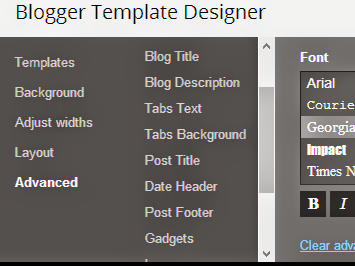
As mentioned earlier, there are 5 options youll get in the left pane. Select one by one and change what you need. You can start from the Template, then Background. Though you can also change your template without entering the template designer.
Adjust Widths: Here you can change the size of your entire blog and sidebar. Do not make it too wide so that it can fit on 1024×768 resolution screen. I prefer 1000 px to 1100 px at best. Right sidebar can be 300 to 320 px.
Layout: If you need to change your layout, this is the right place. You can determine where your sitebar will be located. Where gadgets can be placed. How many gadgets can be placed at the footer etc. Just select the options one by one and observe the change. Then decide whether you will keep the settings or not.
Advanced: The most critical and important part of the template designer. Its just like finalizing a word document. Blog title, description, text color, link color, gadgets, post footer, tabs design - everything can be customize from here.
Before you start editing, you must load the template desinger page properly. And make sure that your sites preview appears on the screen. Otherwise you will not be able to see the changes.
When you change something, it will be displayed in the preview. But settings will be finalized when you hit the Apply to Blog button.
Get More Tips on Blogging . . .
Stay with Marks PC Solution to get more interesting IT topics!
Sunday, September 28, 2014
Recover Your Data from Corrupt Damaged Excel Workbook
-->
MS excel workbook may get corrupt due to several reasons.
These reasons could be:
1. It may be possible you can open the Excel file but data is corrupt.
2. File could not be open due to some disk error or network error.
If you are facing error as mentioned above then first you need to take the backup of your corrupt or damaged file before using excel recovery methods.
Once you take the backup of the file then you can follow these methods to recover your file.
Method 1: If File can be open: Apply below written method if you can open corrupt or damaged file.
Save your corrupt file in HTML format:
If you can open the corrupt MS Excel file, you can "filter" it and try to save it in HTML format, close the file, and then reopen it as follows:
- On the File menu, click Save As. In the Save as type list, click Web Page (*.htm, *.html).
- Under Save, click Entire Workbook, and then click Save.
- Close the file.
- Open the file again in Excel.
- On the File menu, click Save As. In the Save as type list, click Microsoft Excel Workbook. Change the name of the file to create a new "filtered" copy without replacing the original.
- Start Excel and open a blank workbook if one is not open on the screen.
- On the Tools menu, click Options.
- Click the Calculation tab.
- In the Calculation section, click Manual, and then click OK.
- On the File menu, click Open and try to open the file.
In minor excel workbook corruption cases you are able to recover data by any of above written methods. But in any case these methods didnt work for you then you need to use some advanced Excel recovery software to fix your problem.
Saturday, September 27, 2014
Find your IP Address and Get Detailed Information about any IP Address!

Many days ago I wrote about how to find your IP address. And in this post Im gonna write something more for you. If you read this post carefully, you will be able to know
- How to find IP address
- How to collect detail information about an IP including its location, ISP etc
- Whether it is blacklisted or not
- How to Trace Email
Not only the above, but also you can do many things with the sites Im sharing with you right now.
There are many sites available in the web for doing these tasks. But I am recommending you only the following sites:
- WhatIsMyIPAddress.com
- IP-LOOKUP
- WhatIsMyIP.com
But my personal choice is the first one. I mean What Is My IP Address. Lets start our operation.
Click here to start. And let the page load in your browser. Now you will notice your IP at the screen as below.

Here you can see the detailed information about your own IP. If you wanna know something about any other IP then type its address in the Additional IP Details box and press on it. It will show you the full information about it.
You can also check whether an IP is blacklisted or not. Click here to start this operation. And you should type the IP address if it is not your own IP in the check black list box.
If you wanna check from where an email is sent to u then click here.
And youll get the all services here at a glance provided by this site.
Stay with Marks PC Solution to get more interesting IT topics!
How to keep your Ubuntu PC up to date
According to the University of Chicago IT Services, keeping your Linux operating system up-to-date helps it remain secure and efficient. Linux operating systems, including the Ubuntu distribution, provide software updates (patches and security updates) when needed, The procedures in this document specifically apply to Ubuntu 11.10 and newer releases, and generally to all LInux distributions.
Opening the Ubuntu Update Manager - To open the Ubuntu Update Manager, do the following:
- At the top of the Launcher (at the left of the desktop), click the Dash icon to display its window.

- Click the Search Application icon (the second icon at the bottom of the Dash home window), to display some of the application icons.

- Click Fiter results, click System and then click Update Manager to open it and display its window.
Setting your Ubuntu update options - To set your Ubuntu update options, do the following:
- Open the Ubuntu Update Manager as explained above.
- Click Settings to display the Updates page in the Software Sources window.
- Set security updates to Download automatically.
- Set other updates to Display immediately.

- Close the Settings window and then close the Update Manager window.
Installing updates into your Ubuntu system - To install updates to the Ubuntu operating system on your PC, do the following:
- Open the Ubuntu Update Manager as explained in the first section above. (Alternatively, if the Launcher is announcing available updates by displaying the Update Manager icon, you can click on it to open it.)
- Click Check to display the Updating Cache window and list all available updates.
- Click Install Updates to display the Authenticate window.
- Type your password and then click Authenticate to download the updates and display the Applying Changes window.
- Wait for the Update Manager to finish applying the changes, and then if "your computer needs to restart to finish installing updates," click Restart Now .
Subscribe to:
Posts (Atom)