Showing posts with label blogger. Show all posts
Showing posts with label blogger. Show all posts
Monday, September 29, 2014
Customize Your Blog by Blogger Template Designer
If your site is made by Blogger, then you should be familiar with Blogger Template Designer. This is really a lovely way to redesign your site with custom color, look, layout etc. But many new bloggers dont know about it. Ive already helped some new guys in blogging. Believe it or not, they shared their password with me to redesign their sites!
Today I would like to discuss about Blogger Template Designer, so that new bloggers no longer need to share their passwords with me to redesign their sites. This method is as easy as editing a MS Word Document. :)
The advantages of using blogger template designer are:
- Coding knowledge is not necessary
- Just select and preview your look
- You can easily back to the previous look
What can you do with Template Designer?
With template designer, you can modify the following things:
- Templates: Lets you change your template.
- Background: Allows you to change the background and color.
- Adjust Widths: Change your sites width and sidebar width.
- Layout: You can rearrange your body and footer layout from this option.
- Advanced: Font Style, Size, Color, Gadget Title, Links, Post Footer etc. can be modified from here.
Instruction:
Make sure youre signed in to your blogger account. Now follow the path:
Blogger Dashboard/ Control Panel > Template > Customize. Now youll get the template desinger as follows:
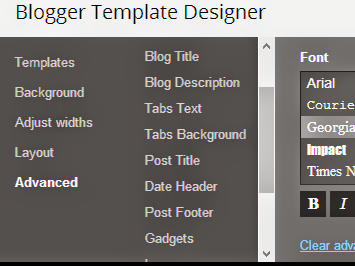
As mentioned earlier, there are 5 options youll get in the left pane. Select one by one and change what you need. You can start from the Template, then Background. Though you can also change your template without entering the template designer.
Adjust Widths: Here you can change the size of your entire blog and sidebar. Do not make it too wide so that it can fit on 1024×768 resolution screen. I prefer 1000 px to 1100 px at best. Right sidebar can be 300 to 320 px.
Layout: If you need to change your layout, this is the right place. You can determine where your sitebar will be located. Where gadgets can be placed. How many gadgets can be placed at the footer etc. Just select the options one by one and observe the change. Then decide whether you will keep the settings or not.
Advanced: The most critical and important part of the template designer. Its just like finalizing a word document. Blog title, description, text color, link color, gadgets, post footer, tabs design - everything can be customize from here.
Before you start editing, you must load the template desinger page properly. And make sure that your sites preview appears on the screen. Otherwise you will not be able to see the changes.
When you change something, it will be displayed in the preview. But settings will be finalized when you hit the Apply to Blog button.
Get More Tips on Blogging . . .
Stay with Marks PC Solution to get more interesting IT topics!

Sunday, September 28, 2014
Move Site between WordPress Blogger
New bloggers are often confused about choosing the right platform for blogging. Most of them choose either WordPress or Blogger to start blogging. But after few months or years, depending on your requirements you may think to switch your platform. Both WordPress and Blogger let you move the site easily. And they support each other!
You Should Know -
The transfer procedure is almost similar both in Blogger and WordPress.
Blogger to WordPress
This is the most common situation. Most of the new bloggers start writing on Blogger. When they need more resources, they shift their sites to WordPress. In fact, when a blogger becomes professional, he usually moves the site to WordPress.
If you would like to move your site from Blogger to WordPress, then youve to back up your site first. Then upload the file to your WordPress site. Follow the steps below:
Back up your Blogger Site
Even if you dont move your site, always back it up at a regular interval. Any time you may lose your email account which is associated with your site. And thus your site could be hacked! So back up your site at least once in a quarter. So that you can restore it in a new site.
You Should Know -
- All of your posts will be moved with comments and images.
- No data will be deleted from your current site unless you delete it.
- You can back up your site as XML file.
- Images will be stored by server URL.
- However you will lose your SEO score or rank.
The transfer procedure is almost similar both in Blogger and WordPress.
Blogger to WordPress
This is the most common situation. Most of the new bloggers start writing on Blogger. When they need more resources, they shift their sites to WordPress. In fact, when a blogger becomes professional, he usually moves the site to WordPress.
If you would like to move your site from Blogger to WordPress, then youve to back up your site first. Then upload the file to your WordPress site. Follow the steps below:
Back up your Blogger Site
- Sign in to your blogger account and go to the dashboard or control panel.
- Choose the settings option from the left pane and select other.
- Now hit on the Export Blog button from Blog Tools.
- Download Blog > Save it as XML Document in your hard disk.
Now you can keep this XML file in your hard disk. Later you can use it anywhere. Learn more . . .
Upload the file to WordPress
Now youve to upload the XML file to your WordPress site. First you have to access your WordPress Sites Admin Panel. Make sure youre signed in to your WordPress account. Now go to your site. And follow the steps below:

Store the file in your hard disk to upload anywhere in the futuer.
- This URL- http://munnamark.wordpress.com/wp-admin - will give you the direct access to your sites dashboard. Just replace the word munnamark with yours.
- From the left pane, go to Tools > Import > Blogger. Or you can directly go there - http://munnamark.wordpress.com/wp-admin/admin.php?import=blogger - Just replce the word munnamark.
- Now hit on the Choose File button and select the XML file that youve stored earlier.
- Now hit on the Upload File and Import. Import procedure will be started. This may take some time.
WordPress to Blogger
Now Im gonna show the opposite work. Actually it doesnt happen normally. Only few bloggers leave WordPress. Sometimes new bloggers choose WordPress to start blogging. Later they find the platform difficult in compare to blogger.
Its very simple. Just do the reverse work!
Back up your WordPress Site
- Go to the WordPress Control Panel - http://yoursite.wordpress.com/wp-admin
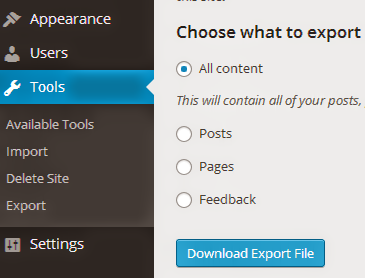
- Then go to Tools > Export > Export Option > Export > Choose What to Export > All Content > Download Export File > Save as XML Document > Done!
Store the file in your hard disk to upload anywhere in the futuer.
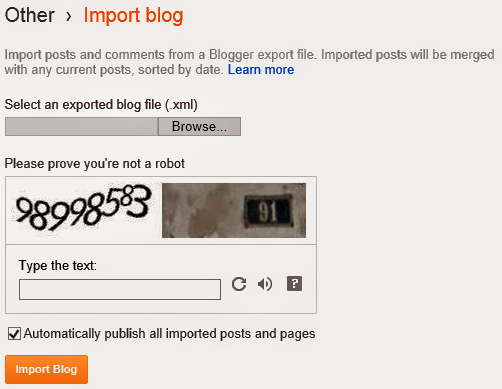
Upload the File to Blogger
Now its time to upload your WordPress XML file to Blogger. Make sure youre signed in to your blogger account. And follow the steps below:
- Go to Blogger Dashboard/ Control Panel.
- Go to Settings > Other > Blog Tools > Import Blog > Choose File > Select WordPress XML Document > Type Captcha properly > Import Blog > Done!
Even if you dont move your site, always back it up at a regular interval. Any time you may lose your email account which is associated with your site. And thus your site could be hacked! So back up your site at least once in a quarter. So that you can restore it in a new site.
Stay with Marks PC Solution to get more interesting IT topics!
Subscribe to:
Posts (Atom)