Showing posts with label portable. Show all posts
Showing posts with label portable. Show all posts
Friday, October 17, 2014
IcoFX Portable Free Download !!

IcoFx is a professional icon and cursor editing tool - an all in one solution for icon creation, extraction and editing. This is a small but smart tool. Numerous features has been added to this software. But all these features are not my concern. Im just gonna show how to convert image into icon using this tool.
Before I start, could you please remember or at least have a look at the following posts?
Show Custom Picture on Pen Drive!!!
About two years ago, I published this post. Its a very cool trick. Most of the users were able to apply this to their flash drives. But some of them couldnt. Because they failed to create a proper icon of their desired images. Then I wrote another post.
Convert Image into Icon Online!
Its an online tool. Its quite handy. But sometimes you may need to work offline where no connection is available. And it doesnt have much customization capacity. Thats why Im writing about IcoFX Portable.
System Requirements
Its compatible with any running version of Windows with no special requirement. But you should be skilled enough to operate this tool. Its interface is little bit confusing I think!
Lets start by downloading the file (Its free of stupid Ads!).
IcoFX Portable (Free Download)
Its a zipped file. After downloading the file your should unzip it first. Then install IcoFx Portable for one time. Choose a proper location to install. It shouldnt be the drive C:, I mean the booting drive. Choose a different disk other than your Windows installation directory.
Now go to the folder where youve installed the software. Find IcoFX Portable. You can create a shortcut either on Desktop, Taskbar or Start menu to ensure easy access to this soft.
Lets convert image into icon. Run IcoFX Portable. Go to the File menu and hit on the Import Image (Press Ctrl+M). Now find and select an image from your hard drive. At the New Image window, select your desired colors and size. If you dont understand the options, keep it default. And then hit OK.
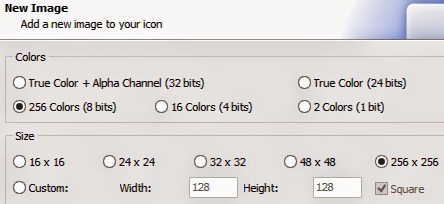
Now you will get a new window named Advanced Import. Crop or resize your image if necessary and hit OK. Were almost done!

Look below the Menu bar. There are both Windows and Apple Icon. Hit on the Windows icon to create icon for PC or hit on the Apple icon to create icon for Mac.

Now choose your prefereces regarding color and size. Then hit OK again.

Finally save the icon. Choose .ico format for Windows and .icns for Mac. Have you got it? Please comment . . . :)
Stay with Marks PC Solution to get more interesting IT topics!

Sunday, September 28, 2014
Download Portable ISO Creator 256 KB Only!

Most of you are familiar with ISO file. Its a digital image of an optical disk. An ISO file can be burnt through Nero, Infra Recorder or other image burning tools. You can back up your Windows disk as an ISO image and later you can burn it to a CD or DVD.
Suppose you have a notebook or tiny laptop which have no DVD drive. Or you desktop PC may not include a DVD drive. Or your DVD drive may not by functioning now. But you or your friend have a Windows disk. You can back up this disk image as ISO. And later you can install Windows from this ISO disk trhough burning it to a USB or DVD disk.
There are different tools for creating ISO files. Earlier I discussed about Infra Recorder which is capable of creating .iso file and burning it to a disk. But today I would like to share a Portable ISO Creator which is just capable of creating .iso file only.
Features
With this ISO Creator, you can create iso image of any Windows Disk, files or folders.
- ISO Creator is fast, simple, and portable
- Lightweight - 256 KB Only!
- 100% Free + Open Source
- Easy and Simple Interface
Procedure:
- First, Download the Portable ISO Creator - its a 100% free link.
- Now unzip and store it in your desired location.
- Open the folder and double click on IsoCreator.exe to run the software.
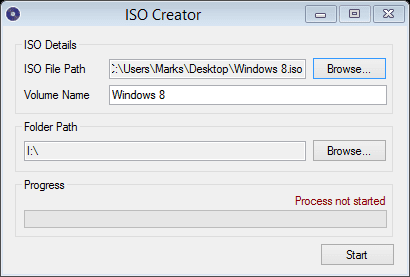
- Select your ISO File path - Its your ISO file destination. i.e. Windows 8.iso
- Type Volume Name - i.e. Windows 8
- Select Folder Path - your source drive/ DVD drive
- Launch the operation by hitting the Start button.
- Within few minutes your task will be finished and you will get a confirmation message!
You can also follow the image below:
If you face any problem while creating ISO image of any disk, please knock me . . .
Stay with Marks PC Solution to get more interesting IT topics!
Subscribe to:
Posts (Atom)