Showing posts with label !!. Show all posts
Showing posts with label !!. Show all posts
Friday, October 31, 2014
Google Authorship Show Yourself in the Search Result !!

If you search Google very often you may notice some search results appear with an image of a person. Basically it is the thumbnail image of the writer of that content. What do you think of it? How does it appear in the Google search result? Other search engines still dont have this feature. Then how/ why it appears in Google search result?

Look at the above image. Search item is- marks pc. And the result is Marks PC Solution. You should notice my picture with the site. You can also enable your picture when your site appears in the search result.
Actually this is a great feature launched by Google. Google named this feature as Google Authorship Program. If you wanna enable this feature for your site then you have to go through few steps which are not very critical at all. I decided to write about it more than a year ago. But failed to publish about it due to the heavy work pressure.
But believe me, for my site, Marks PC Solution, I didnt enable this feature knowingly! Then how does my image appear in the search results? The answer is my Google Plus Profile. Yes, this feature works for that sites which writers have Google Plus Profile.
If you already see your image in the search result with your sites link, then you dont need to do anything more. That means the URL of your Website/ Blog is already linked to your profile. Thus this features is already enabled for you.
About Google Authorship Program
Google authorship program was launched on June 28, 2011. In that time, only a few hundred authors joined this program. Because many people were not familiar with this feature. But day by day, authors are being interested to enable this feature for their sites and contents.
Many of you may think Google considers authorship as a search ranking factor. But to be honest, still it not being used by Google as a search signal. Google uses more than 200 signals to determine search ranking. And in the future authorship program may be used as a search ranking factors.
How to Enable this Feature?
Well this is very easy. All you need is just a Google + Profile with a link of your site in that profile. Also make sure the following issues:
- Make sure you have a high quality Google+ profile picture with a recognizable headshot. I mean your face should be identifiable on that picture.
- Make sure a byline containing your name appears on each page of your site. Have a look at the end of this post- Posted by Abdur Rahaman.
- Make sure byline name and your Google+ profile name are exactly same.
- Make sure that your Google+ email address and your sites email address are same. If your sites email address is different then read more.

If youre sure about the above issues then just do the following:
- Go to your Google+ Profile.
- Then move to the About tab of the profile.
- Now scroll down to the Links section. Look at the above image.
- There are three options available: Other Profiles, Contributor to and Links.
- Hit on the Edit option. See the image below.
- Add your sites name and URL here. See the image below.
- Also add your sites name and URL in the Links too.
- Now save it and wait for your picture to be appeared in the search result. It may take few hours to few days depending on how much time is required by Google to crawl your image.

Finally, though Google doesnt consider authorship program as a search ranking signal, still it might be an important factor in SEO. You can consider this exactly as search description. Often people choose a site from search result by reading the search description of that page. And if the image of an author is familiar to the visitors and if that author is popular among them, then it will be very helpful for the visitors to pick the site from the search results!
So what do you think? Isnt it also important to increase your sites visitors? Enable it now to get advantage!!!
Stay with Marks PC Solution to get more interesting IT topics!

Friday, October 17, 2014
IcoFX Portable Free Download !!

IcoFx is a professional icon and cursor editing tool - an all in one solution for icon creation, extraction and editing. This is a small but smart tool. Numerous features has been added to this software. But all these features are not my concern. Im just gonna show how to convert image into icon using this tool.
Before I start, could you please remember or at least have a look at the following posts?
Show Custom Picture on Pen Drive!!!
About two years ago, I published this post. Its a very cool trick. Most of the users were able to apply this to their flash drives. But some of them couldnt. Because they failed to create a proper icon of their desired images. Then I wrote another post.
Convert Image into Icon Online!
Its an online tool. Its quite handy. But sometimes you may need to work offline where no connection is available. And it doesnt have much customization capacity. Thats why Im writing about IcoFX Portable.
System Requirements
Its compatible with any running version of Windows with no special requirement. But you should be skilled enough to operate this tool. Its interface is little bit confusing I think!
Lets start by downloading the file (Its free of stupid Ads!).
IcoFX Portable (Free Download)
Its a zipped file. After downloading the file your should unzip it first. Then install IcoFx Portable for one time. Choose a proper location to install. It shouldnt be the drive C:, I mean the booting drive. Choose a different disk other than your Windows installation directory.
Now go to the folder where youve installed the software. Find IcoFX Portable. You can create a shortcut either on Desktop, Taskbar or Start menu to ensure easy access to this soft.
Lets convert image into icon. Run IcoFX Portable. Go to the File menu and hit on the Import Image (Press Ctrl+M). Now find and select an image from your hard drive. At the New Image window, select your desired colors and size. If you dont understand the options, keep it default. And then hit OK.
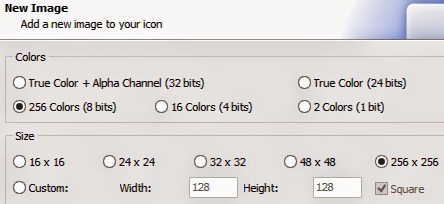
Now you will get a new window named Advanced Import. Crop or resize your image if necessary and hit OK. Were almost done!

Look below the Menu bar. There are both Windows and Apple Icon. Hit on the Windows icon to create icon for PC or hit on the Apple icon to create icon for Mac.

Now choose your prefereces regarding color and size. Then hit OK again.

Finally save the icon. Choose .ico format for Windows and .icns for Mac. Have you got it? Please comment . . . :)
Stay with Marks PC Solution to get more interesting IT topics!
Friday, October 3, 2014
Make Calculator Using Notepad !!

In this post I am gonna show you another fun of notepad. Here I will show you how to make calculator using notepad.
Copy and paste the following text in notepad.
Now save the file as Calculator.bat. Now double click on the file to open it. Type 2*2 and have fun!@echo offtitle Batch Calculator by (www.munnamark.blogspot.com)color 0c:topecho --------------------------------------echo -Welcome to Batch Calculator by *(Marks PC Solution)!-echo --------------------------------------echo Enter your operandecho.set /p sum=set /a ans=%sum%echo.echo = %ans%echo --------------------------------------------------------------pauseclsecho Previous Answer: %ans%goto toppauseexit
Sunday, September 28, 2014
Age Calculator by Microsoft Excel !!

Often you may need to calculate your age. Or someone may ask you to calculate his/ her date. And sometimes you may need to calculate the difference between two dates. There are many third party tools (small software) to calculate the difference between the two days.
If youre using Windows 7/ 8 then you dont need any other tool to calculate the difference between two dates. Because Windows 7 and 8 has a nice calculator. It allows you to calculate age or date difference.
To calculate a date using Windows 7/8 calculator-
- Press Start + R > type calc > hit Enter.
- Now go to the View menu and choose Date Calculation.
- Now enter the From date and To date and hit on Calculate button.
Read More Here . . .
But my todays discussion is not this one. Today Im gonna show you how to calculate the age or the difference between two dates using Microsoft Excel! You just need to download a file and then open it. Download the file from the link below:
This is a zip folder. After downloading the folder, first you need to unzip it. There are 3 files:
- A Read Me file
- An xls file for Office 97-2003 users
- An xlsx file for Office 2007 and 10 users
Open the file that is compatible with your version of Microsoft Excel. After opening the file you will see some text as showing in the image above. Now do the following:
- Input current date in the day, month and year column.
- Input your birth date or the date from where you want to calculate in the day, month and year column.
- Now you get the difference or your age in the Age row.
Remember: Formulas used in this file for calculation are hidden. Never try to change it unless youre capable. If you make any mistake then it will not show you the correct result. If you wanna change the formulas, first you have to keep a back up copy of the file.
Hopefully this file will be very useful for you. If you wanna know about something or expect something from us, just leave a comment with your feedback/ opinion.
Thanks for visiting Marks PC Solution . . .
Stay with Marks PC Solution to get more interesting IT topics!
Subscribe to:
Posts (Atom)