Friday, October 17, 2014
IcoFX Portable Free Download !!

IcoFx is a professional icon and cursor editing tool - an all in one solution for icon creation, extraction and editing. This is a small but smart tool. Numerous features has been added to this software. But all these features are not my concern. Im just gonna show how to convert image into icon using this tool.
Before I start, could you please remember or at least have a look at the following posts?
Show Custom Picture on Pen Drive!!!
About two years ago, I published this post. Its a very cool trick. Most of the users were able to apply this to their flash drives. But some of them couldnt. Because they failed to create a proper icon of their desired images. Then I wrote another post.
Convert Image into Icon Online!
Its an online tool. Its quite handy. But sometimes you may need to work offline where no connection is available. And it doesnt have much customization capacity. Thats why Im writing about IcoFX Portable.
System Requirements
Its compatible with any running version of Windows with no special requirement. But you should be skilled enough to operate this tool. Its interface is little bit confusing I think!
Lets start by downloading the file (Its free of stupid Ads!).
IcoFX Portable (Free Download)
Its a zipped file. After downloading the file your should unzip it first. Then install IcoFx Portable for one time. Choose a proper location to install. It shouldnt be the drive C:, I mean the booting drive. Choose a different disk other than your Windows installation directory.
Now go to the folder where youve installed the software. Find IcoFX Portable. You can create a shortcut either on Desktop, Taskbar or Start menu to ensure easy access to this soft.
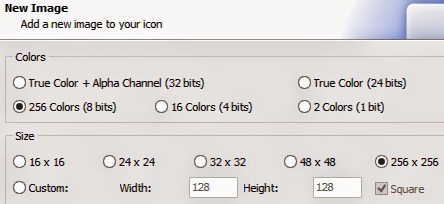
Lets convert image into icon. Run IcoFX Portable. Go to the File menu and hit on the Import Image (Press Ctrl+M). Now find and select an image from your hard drive. At the New Image window, select your desired colors and size. If you dont understand the options, keep it default. And then hit OK.
Now you will get a new window named Advanced Import. Crop or resize your image if necessary and hit OK. Were almost done!

Look below the Menu bar. There are both Windows and Apple Icon. Hit on the Windows icon to create icon for PC or hit on the Apple icon to create icon for Mac.

Now choose your prefereces regarding color and size. Then hit OK again.

Finally save the icon. Choose .ico format for Windows and .icns for Mac. Have you got it? Please comment . . . :)
Stay with Marks PC Solution to get more interesting IT topics!

Thursday, October 16, 2014
Creating a Redo live CD
You can use the free, open-source Redo Backup and Recovery utility to back up (and, if necessary, restore) all software and data on your PC hard drive. This document can help you create a Redo live CD, though which you can create a full-system backup of any PC that has a single Linux or Microsoft Windows operating system.

Note: As of June, 2012, Redo does not let you back up and recover a dual-boot PC. For example, if you have set up dual-boot Linux and Windows on your PC, you cannot use Redo to back up that PC. However, the free, open-source Clonezilla does let you back up and restore any dual-boot PC.
Downloading and Burning - As I demonstrate in my video above, you can create your CD as follows:
- Go to the Redo website, and then, at the top of the page, click downloadto display the Get Redo Backup page.
- In the section Getting Started - 1. Download the latest live CD image, click the yellow word here to display a SourceForge Redo download page.
- Click Download, and wait until the ISO file has finished downloading.
- Place a blank, writable CD into your optical drive.
- Burn the Redo ISO image to your blank CD. For example, in Ubuntu, you can right-click redobackup-livecd-1.0.3.iso, click Open With Brasero Disc Burner to display the Image Burning Setup window, and then click Burn. For more information, see How to burn a bootable CD or DVD.
Backing up and restoring - The Redo live CD lets you backup and restore the main hard drive on your PC:
- As I explain in Backing up your PC through a Redo live CD, you can back up any single-operating-system PC. Boot your PC through the Redo live CD, which lets you create a backup of the hard drive on that PC. Redo stores the backup on external media, such as an external hard drive.
- Subsequently, as I explain in Restoring your PC through a Redo live CD, you can use your Redo live CD, and the backup on your external drive, to restore the backup to your PC.
Wednesday, October 15, 2014
New in iOS 8 Built in Braille Keyboard for Six Dot Input

iOS 8 includes enhancements to VoiceOver, the built-in gesture based screen reader for people with visual impairments. One of the improvements is a new built-in Braille Keyboard for Six-Dot input. The new feature is similar to the BrailleTouch app released a few years ago with one major difference; the built-in option can be used to enter text into any app directly. The option can be enabled in the VoiceOver rotor. The Braille keyboard will offer VoiceOver users who are familiar with Braille an alternative, and possibly much faster text entry method. iOS 8 will also offers third-party keyboards such as Fleksy which could also offer significantly faster text input for VoiceOver users.
Once you turn the Braille keyboard on six positions will appear on screen representing the six Braille dots. When the device is held with the screen perpendicular to the floor it automatically enters screen away mode. When using this mode the user faces the screen away allowing three fingers from each hand to contact the screen. As the user begins to type the six virtual dots automatically reposition themselves to compensate for changes in your grip. The dots can also be recalibrated by holding down the three right hand fingers and then the three left hand fingers immediately after. This positions the dots directly under your fingers.
When the device is set on the table or another flat surface the Braille keyboard enters tabletop mode. This mode would seem to be ideal for an iPad can can also be used on smaller devices. It does take some care to ensure that the keyboard does not switch between tabletop and screen away mode accidentally. In both modes typing did seem difficult on the small screen, but some practice seemed to improve typing speed. This new option allows typing with contracted or uncontracted Braille. When typing a swipe right adds a space and a swipe left deletes the last character typed. This new method of typing is very sensitive a will likely require practice before mastering. If you use this feature frequently, it maybe helpful to purchase a case that boarders the screen to avoid trying to type on the bezel.
To enable the Braille keyboard go to Settings > General > Accessibility > VoiceOver > Rotor > Braille Screen Input. Then, when VoiceOver is enabled, rotate the rotor until Braille screen input is selected. It exciting to see all the new third-party keyboard options for iOS 8, but for VoiceOver users, Apples own Braille keyboard maybe the most exciting of all.

Tuesday, October 14, 2014
Play Guitar with Google Doodle!
Have you ever played guitar? To be honest with all of you, I never played it. And I am not interested to do so. Because I am busy with my computer, internet and blog.
But I often like to play digital guitar! If you frequently visit Google then you may notice that its logo changes time to time. At present it shows Olympic events as doodle. Sometime in 2011, I opened the home page of Google. I surprised at looking its doodle as below. Whenever I move my cursor it sounds just like a guitar.

Click this link to play guitar
This doodle was launched in honor of musician and electric guitar pioneer Les Paul, who passed away in 2009. You can play this guitar by mouse and keyboard. Just move your mouse over the doodle and it will make sound. You can also play it by pressing the keys of keyboard.
Recording option is also available for you. You can record your performance and get it by a link.
Stay with Marks PC Solution to get more interesting IT topics!
Sunday, October 12, 2014
Apple Configurator Perfect Tool for Schools With iPads

More and more schools are providing iPads to all or some of their students. Setting up dozens of iPads manually can be time consuming and monotonous. Apples free Mac app called Apple Configurator solves this problem by allowing schools to set up multiple iPad, iPhone or iPod Touch all on once. Click here to download the app from the Mac app store. Once the you have downloaded the app you can change settings and install apps on multiple iOS devices. Apple Configurator is a time saving app for anyone that needs to set up multiple iOS devices. Click read more below to view screen shots of Apple Configurator in action.


Subscribe to:
Posts (Atom)